Gamepad Tester – Online PS5, PS4, PS3 & Xbox Controller Test

No Controller Detected
Connect your controller using USB or Bluetooth and press any button to start testing. Works with Xbox, PlayStation, Nintendo, and other controllers, with accurate button testing.
 Button States
 Analog Axes
 Vibration Test
 Export Test
Report
Export Test
ReportNo Controller Detected
Connect your controller via USB or Bluetooth and press any button to begin testing. Supports Xbox, PlayStation, Nintendo, and generic controllers with full button mapping and precision testing.
No Controller Detected
Connect your controller via USB or Bluetooth and press any button to begin testing. Supports Xbox, PlayStation, Nintendo, and generic controllers with full button mapping and precision testing.
No Controller Detected
Connect your controller via USB or Bluetooth and press any button to begin testing. Supports Xbox, PlayStation, Nintendo, and generic controllers with full button mapping and precision testing.
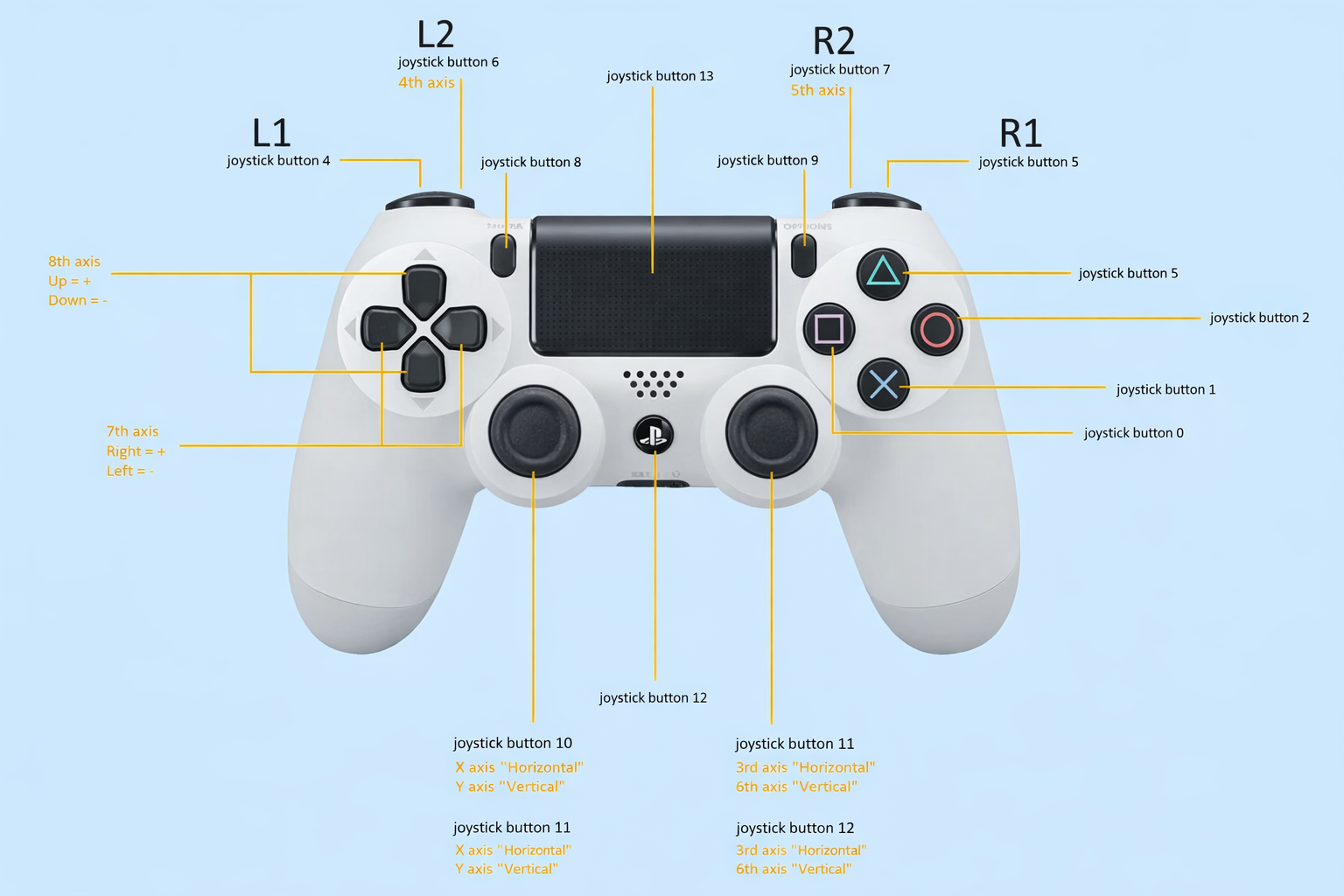
Gamepad Controller Tester
Connect your game controller with USB or Bluetooth and check if all buttons and sticks are working. You can see everything live on the screen.
Fast and Easy Controller Testing
Check button presses in real time, track analog stick movements, monitor trigger pressure & get instant visual feedback response on screen for all controller inputs.
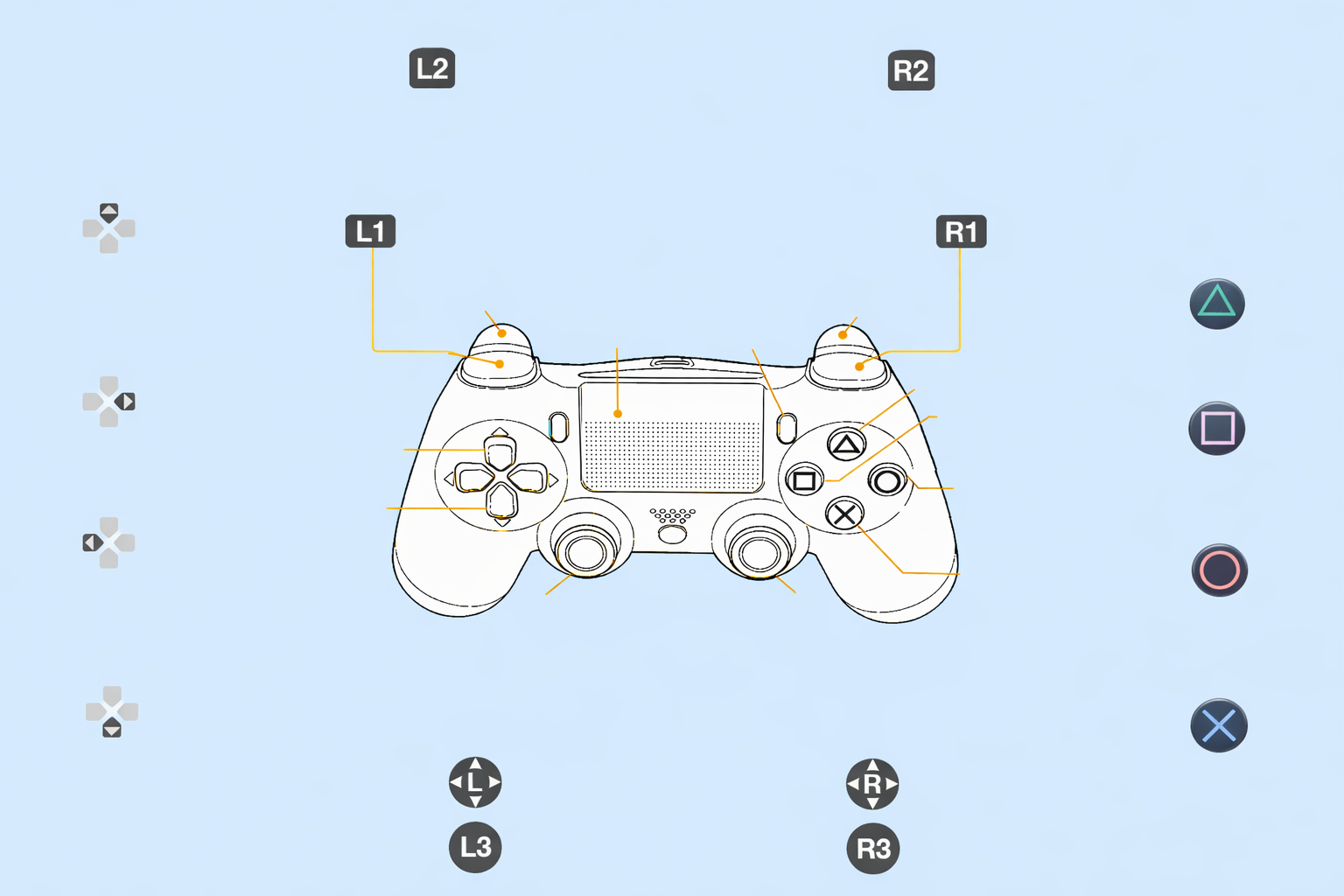
More Advanced Testing Suite
Test your controller with easy-to-use tools and special checks to see how well every button, stick, and trigger works.
One-Click Controller Check Details
Gamepad Tester gives you 7 easy-to-use tools to check and understand how every part of your controller works.
Gaming controllers are the bridge between your hands and the game world. Whether you’re navigating the battlefield in a first-person shooter, performing intricate combos in a fighting game, or racing at breakneck speeds in a racing simulator, your controller’s performance directly impacts your gaming experience. A button that doesn’t respond, an analog stick with drift, or a trigger with inconsistent pressure can be the difference between victory and defeat. That’s why knowing the exact condition of your controller is crucial for gamers of all levels, from casual players to competitive esports professionals.
With the increasing complexity of modern controllers like the PS5 DualSense, Xbox Series X Wireless Controller, or Nintendo Switch Pro Controller, the number of functions to monitor has expanded dramatically. These devices are no longer simple button-and-stick peripherals; they come with features such as haptic feedback, adaptive triggers, motion sensors, and analog stick precision adjustments. While these enhancements improve gameplay, they also create more potential points of failure. Even a brand-new controller can suffer from dead zones in the analog sticks, unresponsive triggers, or input lag due to software or hardware issues.
This is where a reliable gamepad tester becomes invaluable. A gamepad testing tool allows you to check every aspect of your controller, from individual button presses to analog stick movement, vibration motors, and even latency. By identifying these issues early, you can prevent frustrating gameplay experiences, improve your performance, and extend the lifespan of your gaming hardware. Online controller test tools make this process seamless, requiring no downloads, no installations, and no complicated setup, just plug in your controller via USB or connect via Bluetooth, and start testing immediately.
A proper controller check ensures that every input is functioning as intended. For competitive gamers, even a millisecond of input lag can make a huge difference. Testing the controller input response not only helps detect hardware issues but also highlights environmental factors, such as wireless interference or low battery performance, which may degrade the controller’s responsiveness. With gamepad checker tools, you gain a full overview of your controller’s condition and can make informed decisions about maintenance, repairs, or replacements.
Why You Should Test Your Gaming Controller?
Testing your gaming controller isn’t just about troubleshooting; it’s about optimizing your gaming setup. Many players underestimate the value of a fully functional controller until a critical in-game moment exposes hidden flaws. Here are the key reasons why you should routinely test your gamepad:
Detect Button Malfunctions
Controllers contain multiple buttons, each with mechanical switches that can wear down over time. A stuck or unresponsive button can disrupt gameplay, especially in games that require precise inputs. Using a controller button tester, you can verify that each button functions reliably. The tool highlights missing or delayed button presses, so you know exactly which buttons need attention.
Monitor Analog Stick Performance
Analog sticks, also referred to as joysticks, are prone to drift or dead zones. Drift occurs when the stick registers movement even when idle, while dead zones are areas of movement that the controller fails to detect. By using a joystick tester or a controller joystick check, you can map your stick’s behavior in real-time, ensuring smooth and precise control. This is especially critical in shooters, racing, and simulation games where accuracy matters.
Verify Triggers and Pressure Sensitivity
Modern controllers feature analog triggers that detect varying levels of pressure. Faulty triggers can result in inconsistent acceleration in racing games or incomplete actions in shooters. A controller input test examines the trigger response, giving you precise feedback about pressure sensitivity and consistency.
Test Vibration and Haptic Feedback
Vibration motors add an immersive dimension to gaming, signaling in-game events such as explosions, collisions, or directional cues. A controller vibration tester ensures these motors are functioning properly. By running a controller vibration test, you can detect weak, inconsistent, or non-functional rumble effects that may reduce immersion or cause gameplay feedback issues.
Measure Input Lag and Latency
Input lag, the delay between pressing a button and seeing the action on screen, can make games feel sluggish and unresponsive. Using an input lag test or controller latency tester, you can measure delays in real-time. This information is crucial for competitive gaming, where millisecond-level delays can influence performance outcomes. Regular testing helps you identify and mitigate latency issues, whether caused by your controller, USB connection, or wireless interference.
Ensure Compatibility and Multi-Controller Functionality
Testing is especially useful when using multiple controllers or different brands. A controller tester online checks compatibility across PS, Xbox, Nintendo, and third-party controllers. This is important for households with multiple players, gaming tournaments, or mixed-device setups. By confirming that each controller works flawlessly, you avoid disruptions and ensure a seamless multiplayer experience.
Prevent Long-Term Damage
Detecting minor issues early prevents further damage. A small analog stick drift or an intermittent button malfunction, if ignored, can escalate into a fully defective controller. A gamepad check allows preventative maintenance, reducing the risk of costly replacements and improving the controller’s lifespan.
Gamepad Features
To use a gamepad tester effectively, it helps to understand the key components and functions of your controller. Let’s break down the main features that you can test and why they matter.
Buttons
Most controllers include action buttons, bumpers, shoulder buttons, and function buttons. These are the most frequently used inputs in any game. A controller button tester evaluates each button individually, ensuring that every press is registered accurately. This testing also helps detect early wear on the button mechanisms.
Analog Sticks / Joysticks
Analog sticks control movement and aiming in most games. They are sensitive to both directional input and pressure. A joystick test measures movement across all axes, detects dead zones, and identifies drift. Accurate analog sticks are crucial for precision control, whether you are maneuvering in an open-world game or executing complex combos in a fighting game.
Triggers
Triggers (often labeled L2/R2 or LT/RT) respond to variable pressure, making them essential for driving, shooting, and other analog-based inputs. Using a controller input tester, you can verify that your triggers respond consistently across their full range of motion. This ensures you have smooth acceleration, braking, and shooting mechanics in your games.
Vibration / Rumble Motors
Vibration motors provide haptic feedback to enhance immersion. A controller vibration tester activates the rumble motors at various intensities to ensure proper functioning. Many modern controllers, such as the PS5 DualSense, also include adaptive triggers and haptic layers that require more advanced testing to confirm responsiveness.
Connectivity
Controllers can connect via USB or Bluetooth. A controller check ensures that both wired and wireless connections work flawlessly. Testing for connectivity helps identify problems such as weak Bluetooth pairing, unstable USB ports, or driver conflicts.
Advanced Input Features
High-end controllers come with additional features such as motion sensors, touchpads, or customizable paddles. A gamepad checker can test these features to ensure they respond correctly during gameplay. For example, motion sensors can be tested for accuracy in racing or VR games, while touchpads on DualShock controllers can be evaluated for precision.
Input Lag and Latency
Finally, every input, whether button press, joystick movement, or trigger pull, has a response time. A controller latency test provides quantitative feedback about how fast your controller communicates with your device. Lower latency translates to smoother gameplay, faster reactions, and a more competitive edge.
How to Test Game Controller?
Read out our advanced online gamepad tester guide for gaming controller checking. Check all buttons, analog sticks, triggers, and vibration motors on 20+ controller types. Works with USB & Bluetooth, no downloads needed.
USB Connection
Use a USB cable to connect your controller for quick testing & detection. It is compatible with every major gaming controller.
Bluetooth Connection
Use Bluetooth to establish a wireless connection. Connect via your device’s settings after putting your controller in pairing mode.
How to Use Gamepad Tester Online
1. Connect Your Controller
Connect the gaming controller to your device using USB or Bluetooth.
2. Start Testing
Begin checking all parts of your controller by following the given steps:
3. Check the Results
Watch the screen to make sure everything is working.
4. Verify All Features
Finish by testing extra controller features.
All Supported Gaming Controllers
Xbox Controllers
Works perfectly with all Xbox controllers from different console generations.
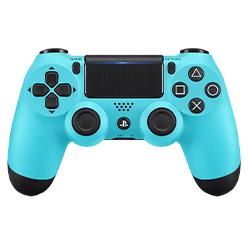
PlayStation Controllers
Full support for PlayStation controllers with complete feature testing.
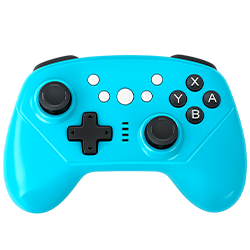
Nintendo Controllers
Test a wide range of Nintendo controllers and accessories.
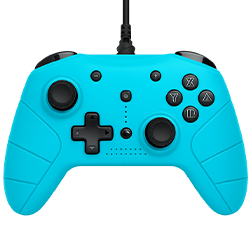
Generic & Third-Party Controllers
Compatible with many USB and Bluetooth controllers from different brands.
How Gamepad Testing Works
Testing your controller with our online gamepad tester is simple, interactive, and precise. Here’s a step-by-step guide to ensure accurate results:
Connection
Connect your controller to your device using USB or Bluetooth.
Detection
Your controller is automatically detected and recognized.
Testing
Press buttons and move the sticks to test all controller functions.
Verifying
See real-time feedback and confirm everything works correctly.
Are you Ready to Test Your Gaming Controller?
Whether you’re a casual gamer, competitive player, or just maintaining your setup, our online gamepad tester ensures every controller performs at its best. It’s fast, reliable, and free, with no downloads or sign-ups required. Don’t wait until a controller issue ruins your game. Start testing now and ensure your gaming experience is smooth, precise, and immersive.
Quick Help & Fixes
While connecting your controller and pressing buttons seems simple, achieving accurate and reliable results requires a few important steps. Even the most experienced gamers can overlook subtle issues like analog stick drift, input lag, or vibration inconsistencies. The following advanced testing tips will ensure your controller tester online delivers precise feedback for every controller type.
Refresh Your Browser
Controllers sometimes fail to be detected due to browser cache or temporary glitches. If your gamepad checker doesn’t recognize your device immediately, refresh the page or reopen the tool. Modern browsers like Chrome, Firefox, Safari, and Edge may need this step to reset gamepad detection, especially if multiple controllers are connected.
Check Connection Quality
A loose USB connection can prevent full detection of controller functions. For USB connection tests, ensure your cable is securely plugged into the port and is free of damage. For wireless controllers, verify that your Bluetooth pairing is stable. Weak wireless signals or interference from other devices can cause input lag or missed inputs. Use the controller input tester to confirm smooth and consistent connection performance.
Allow Browser Access
Many browsers require permission to access connected game controllers. Always grant permission when prompted; otherwise, the controller check online may fail. Modern web security features sometimes block input detection until the user explicitly allows access, so this simple step ensures every button, stick, and trigger is recognized accurately.
Test Battery Levels
Low battery levels can affect wireless controllers’ responsiveness. Unstable performance, intermittent input, or lag often originates from insufficient power. Charge your controller fully or replace batteries before using a gamepad tester online, especially when performing vibration or haptic tests. This guarantees accurate results and prevents false negatives during testing.
Update Controller Drivers
Outdated drivers or firmware can create recognition problems. For example, older Xbox or PlayStation controllers may not function correctly on newer devices without updates. Use the controller tester after updating drivers to ensure all features, including vibration, analog sticks, and triggers, are properly detected. This also helps identify whether an issue is hardware-related or software-related.
Test Multiple Controllers Sequentially
If you own several controllers, test them individually to isolate issues. This is particularly useful for households or gaming tournaments. The controller check tool helps ensure every device is ready for gameplay without conflicts, missed inputs, or lag. Testing sequentially also highlights controllers that may require maintenance or replacement.
Examine Analog Stick Dead Zones
Dead zones are small areas where analog stick movement isn’t registered. They can drastically affect precision in shooters or racing games. Using a joystick test or controller input tester, move each stick across its full range. Look for any irregularities or unregistered movements. Adjust dead zone settings in-game if necessary, or consider servicing the controller if abnormalities persist.
Conduct Input Lag and Latency Testing
Competitive gaming demands the fastest possible response times. Use the controller latency test feature to measure how quickly your controller inputs are registered on-screen. Identify delays caused by USB vs. Bluetooth connections, wireless interference, or low-performance hardware. Regularly testing latency ensures you can maintain an edge in high-stakes scenarios.
Test Vibration Motors at Different Intensities
Some games use subtle haptic feedback, while others apply strong vibrations for immersive effects. A controller vibration tester allows you to verify that the motors respond accurately across all intensity levels. This prevents missed cues in gameplay that could otherwise impact performance or immersion.
Document Your Findings
After testing, note any issues, irregularities, or trends. Over time, this helps you detect wear patterns and anticipate maintenance needs. For instance, if certain buttons start responding slower, you’ll know the controller may require repair or replacement. Combining controller check online results with your own observations improves long-term gaming reliability.
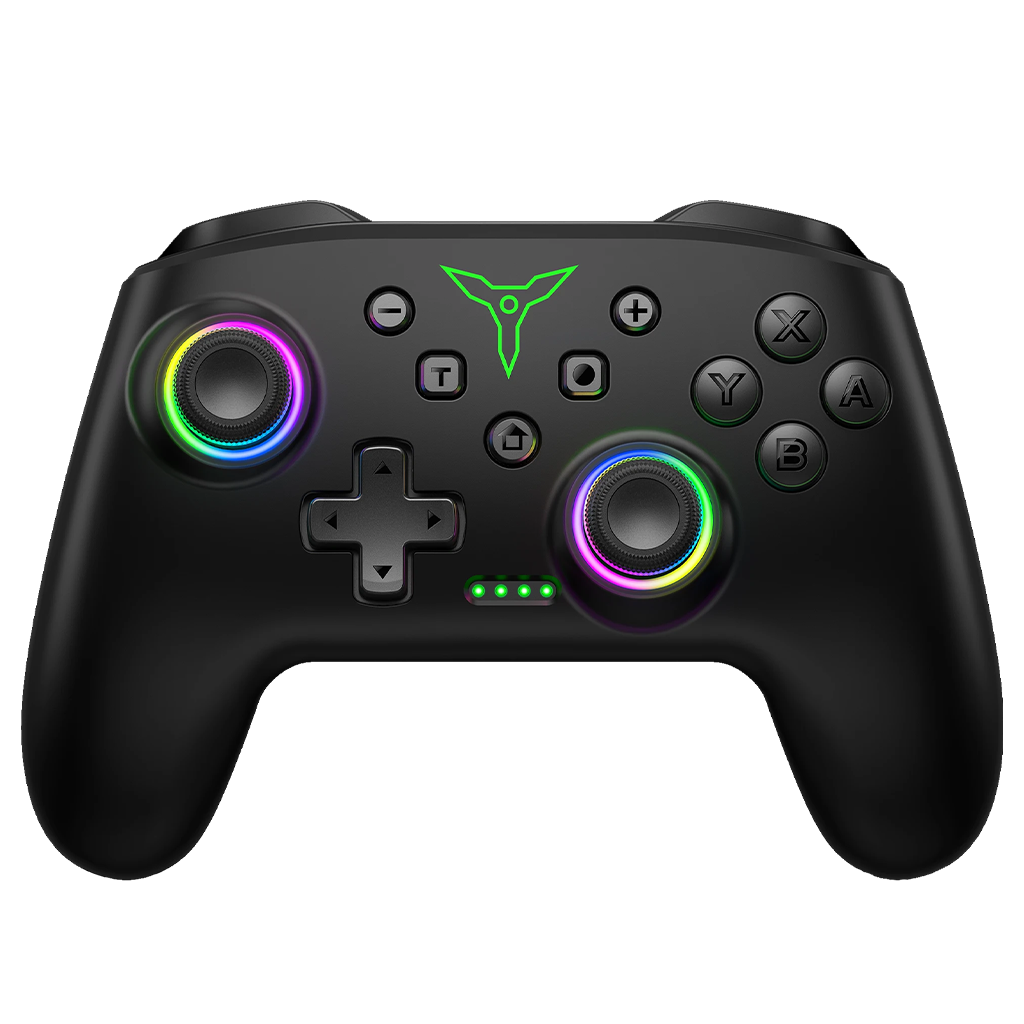
Free Gamepad Tester Online – Test PS5, PS4, PS3 & Xbox Gamepad Controllers
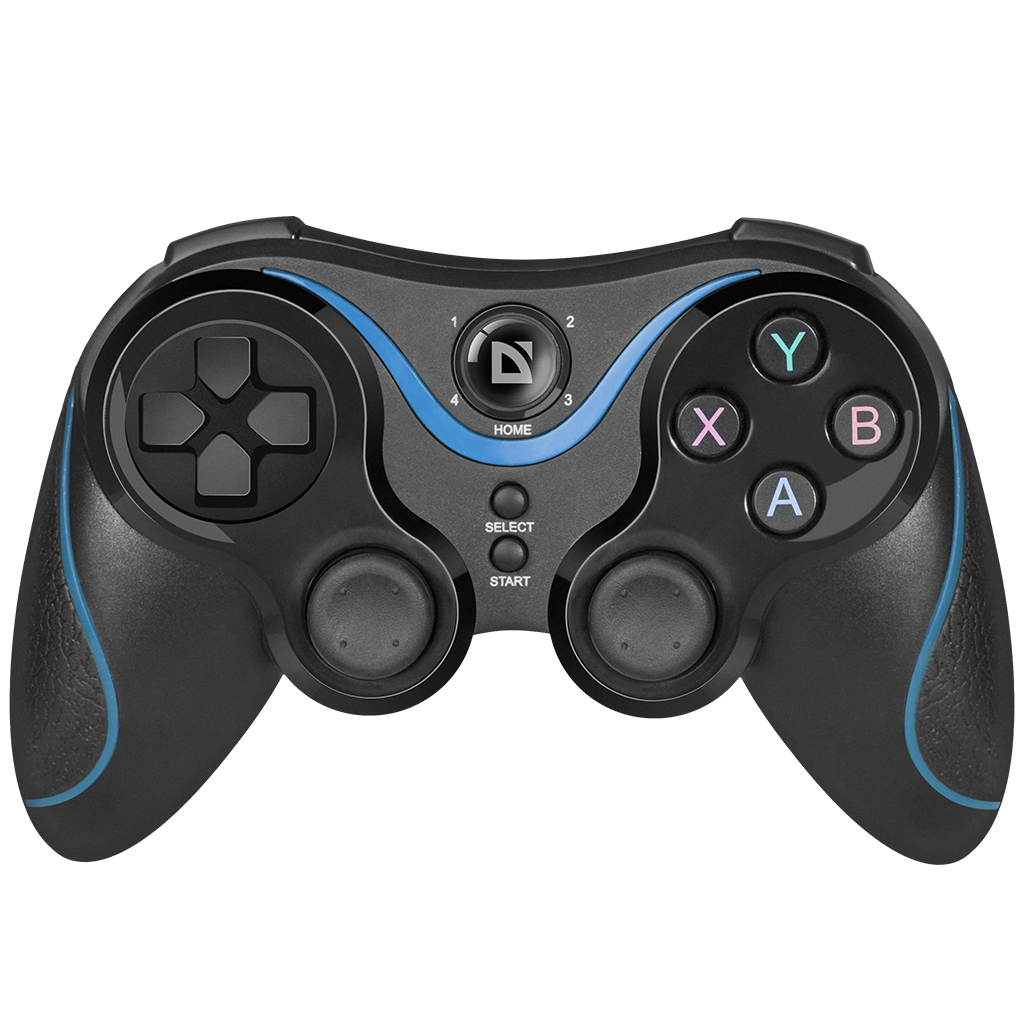
Benefits of Using Our Online Gamepad Tester
Our online gamepad tester isn’t just convenient; it offers measurable advantages that make it an essential tool for every gamer. Here’s why using it regularly is beneficial:
Fast, Instant Testing
Unlike traditional methods requiring software installation or device calibration, our online controller test works instantly. Connect your controller via USB or Bluetooth, and start testing immediately. Real-time feedback allows you to identify issues within seconds, saving time and frustration.
Comprehensive Feature Coverage
The tool tests all controller functions, buttons, analog sticks, triggers, vibration motors, and even input lag. With a controller input tester, you receive a full overview of your device’s condition, ensuring nothing is overlooked. This guarantees accurate and reliable results across multiple controller types and brands.
Cross-Platform Compatibility
Whether you own a PS5 DualSense, Xbox Series X controller, or Nintendo Switch Pro Controller, our online controller checker supports it. It also works with third-party and generic USB/Bluetooth controllers. Cross-platform compatibility is crucial for households with multiple devices or competitive setups with diverse controllers.
Free and No Downloads Required
Many controller diagnostic tools require installation or subscription, which can be cumbersome. Our gamepad tester online is completely free and works directly in your browser. There’s no need for software, plugins, or sign-ups, making it accessible to anyone.
Helps Maintain Optimal Performance
Regular testing keeps your controllers in top condition. Detect issues like analog stick drift, unresponsive triggers, or failing vibration motors before they affect gameplay. Using the tool as part of routine maintenance extends the lifespan of your controllers and ensures consistent gaming performance.
Ideal for Competitive Gamers
For esports players, input precision and low latency are critical. The controller latency test feature provides measurable data, letting you optimize your setup. Detecting input lag or connectivity problems ensures you’re always ready for high-stakes gameplay.
Encourages Informed Purchases
If you buy used controllers, the controller test online allows you to verify functionality before committing. Test every feature, including vibration, triggers, analog sticks, and buttons, to avoid purchasing a defective device.
Multi-Controller Testing for Families or Teams
Households with multiple gamers or competitive teams can test several controllers individually, ensuring everyone has fully functional devices. This is especially useful when setting up a multiplayer tournament or shared gaming space.
Use Cases for Gamepad Tester
Beyond troubleshooting, our online controller tester is versatile and offers practical benefits across various scenarios. Here are the most common use cases:
Competitive Gaming
High-level gaming requires precision. Input lag, dead zones, or unresponsive triggers can cost valuable seconds or kills. Using our controller checker, competitive players can ensure every button press, joystick movement, and trigger pull is registered without delay. Accurate controller testing enhances performance and confidence in tournaments or online matches.
Routine Maintenance
Just like any other hardware, controllers wear over time. Regular testing detects early signs of wear, such as sticky buttons, weak vibration motors, or drifted analog sticks. A gamepad check online allows gamers to maintain their controllers proactively, preventing sudden failures mid-game.
Pre-Purchase Verification
Buying a second-hand controller carries risk. A controller input tester allows buyers to verify full functionality before purchase. This ensures you only invest in controllers that are fully operational and worth the price.
Multiplayer & Family Setup
If multiple controllers are used for shared gaming setups or tournaments, each device needs verification. Using the controller check ensures all devices are compatible and fully functional, reducing frustration during group gameplay.
Mobile Gaming
Modern mobile devices support Bluetooth controllers. Using a gamepad tester online allows you to verify controller performance on smartphones or tablets before playing. This is especially useful for mobile gamers relying on precise inputs for shooters or racing games.
Troubleshooting & Repairs
When controllers act unpredictably, the controller tester online provides diagnostic data. Identify which buttons, triggers, or sticks are failing and determine if a repair is necessary. This targeted approach saves time and ensures accurate repairs.
Immersion Enhancement
Gamers who enjoy rich haptic feedback and vibration effects can test whether their controllers deliver the intended experience. With a controller vibration tester, users can confirm that motors respond at the correct intensity and timing, enhancing immersion in every game.
Frequently Asked Questions
Get quick responses to frequently asked questions regarding Gamepad Tester services