How to Connect a PS4 or PS5 Controller to a PC (Wired & Bluetooth)
Your DualShock 4 or DualSense controller feels better in your hands than anything else on the market, so it makes sense you’d rather use it on PC than buy something new. The good news: Windows supports both PlayStation controllers natively, and you can be up and running in under two minutes. The catch is that PS4 and PS5 controllers don’t connect the same way, Bluetooth pairing fails more often than USB does, and getting the controller detected is only step one, getting its full feature set working in a specific game is a separate step most guides skip past. This guide covers the exact wired and Bluetooth steps for both controllers, how to confirm Windows actually recognizes yours, what’s different between the DualShock 4 and DualSense process, where adaptive triggers and haptics fit in, and how to fix the specific points where pairing typically breaks down.
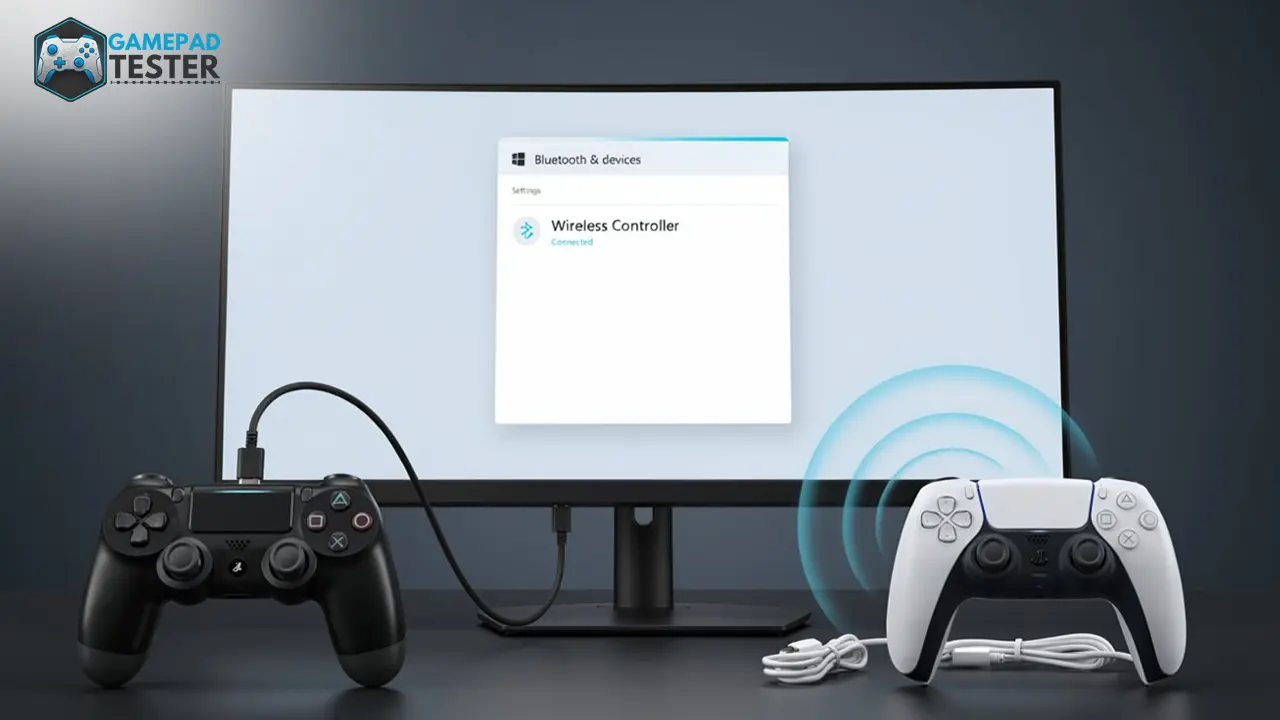
Plug a DualShock 4 in with a Micro-USB data cable, or a DualSense with USB-C, and Windows 10/11 detects it instantly with no drivers needed. For Bluetooth, put the controller in pairing mode (PS + Share for DualShock 4, PS + Create for DualSense) and select “Wireless Controller” in Windows’ Bluetooth settings.
What You Need Before Connecting
- A Windows 10 or Windows 11 PC (older Windows versions aren’t reliably supported for either controller)
- A DualShock 4 (PS4) or DualSense (PS5, including DualSense Edge) controller
- For wired connection: a genuine data cable, Micro-USB for DualShock 4, USB-C for DualSense. Many bundled cables are charge-only and won’t transmit data; if the controller charges but Windows never detects it, this is the first thing to check
- For Bluetooth: a PC with built-in Bluetooth, or a cheap USB Bluetooth adapter (4.0 minimum) if your PC doesn’t have one
- The controller should not currently be paired to a PS4 or PS5 console during setup, PlayStation controllers only maintain one active Bluetooth pairing at a time
- Optional but worth doing first: update your controller’s firmware while it’s still connected to your PS4 or PS5 console, through the console’s own settings menu. Windows has no way to update controller firmware directly, and outdated firmware is an occasional, easy-to-miss cause of connection and pairing failures on PC
Both controllers use standard HID (Human Interface Device) input for basic functions, which is why Windows recognizes buttons, sticks, and the D-pad the moment you connect, no driver installation required, wired or wireless.
Connecting a PS4 Controller (DualShock 4) to PC
Wired (USB) – the most reliable method
- Plug a Micro-USB data cable into the DualShock 4 and into a USB-A (or USB-C with adapter) port on your PC.
- Windows should play its “device connected” sound within a few seconds.
- No drivers are required for basic input like buttons, sticks, and D-pad work immediately.
Bluetooth
- On your PC, open Settings > Bluetooth & devices and make sure Bluetooth is turned on.
- Click Add device > Bluetooth.
- On the controller, press and hold the PS button and the Share button (top-left, next to the touchpad) at the same time for 3–5 seconds, until the light bar starts flashing rapidly.
- On your PC, select Wireless Controller from the list of available devices. Pairing completes in a few seconds.
Note: DualShock 4 Bluetooth input can feel slightly less consistent than USB in some games, if you’re chasing minimal input lag, wired is still the better default even though Bluetooth works fine for casual play.
Connecting a PS5 Controller (DualSense) to PC
Wired (USB-C) – the most reliable method
- Connect the DualSense to your PC with a USB-C to USB-A (or USB-C to USB-C) data cable.
- Windows detects it automatically and plays the connection sound, no extra drivers needed for basic input.
- This is also the fastest way to confirm the controller itself is functioning before you troubleshoot anything else.
Bluetooth
- Make sure the DualSense is fully powered off and not connected to a PS5, cable, or any other device.
- Press and hold the PS button and the Create button (small button to the left of the touchpad) together for 3–5 seconds, until the light bar flashes white rapidly, that’s pairing mode.
- On your PC, go to Settings > Bluetooth & devices > Add device > Bluetooth.
- Select Wireless Controller from the device list to complete pairing.
DualSense Edge users: the Edge connects exactly the same way over USB-C and Bluetooth, the extra back buttons, stick modules, and profile switching are software-side features, not a different connection process.
Basic input – sticks, buttons, D-pad, and standard rumble – works natively over both USB and Bluetooth once paired, no software required. Advanced DualSense features (adaptive triggers, high-fidelity haptics, controller speaker/mic routing) are a separate layer:
- In Steam: enable “PlayStation Configuration Support” under Steam’s controller settings, and Steam Input exposes adaptive triggers and haptics natively for any Steam-recognized title that supports them (titles like Returnal and Horizon Zero Dawn are common examples).
- Outside Steam: most non-Steam games are built around XInput, the input format Xbox controllers speak natively, the DualSense doesn’t. Third-party software like DS4Windows or DualSenseX translates DualSense input into XInput so more games recognize it correctly. Install one only if a specific game or use case actually needs it; you don’t need either just to get basic input working.
- The controller’s built-in microphone and speaker aren’t exposed as a standard Windows audio device, support is inconsistent and mostly limited to specific Steam titles with voice chat enabled.
What the Light Bar Colors Mean
| Light Bar State | Meaning |
|---|---|
| Solid blue/white | Connected and active |
| Slow flashing | Searching for a device / attempting to reconnect |
| Fast flashing | In pairing mode, waiting to be selected on your PC |
| Flashing orange (DualShock 4) | Charging, not actively connected for input |
| No light | Battery depleted, or controller fully powered off |
PS4 vs. PS5 Controller: Key Connection Differences
| Feature | DualShock 4 (PS4) | DualSense (PS5) |
|---|---|---|
| Wired connector | Micro-USB | USB-C |
| Bluetooth pairing buttons | PS + Share | PS + Create |
| Bluetooth generation | Bluetooth 2.1+EDR (Classic) , occasionally less stable reconnects | Bluetooth 5.1 LE – generally faster, more stable pairing |
| Advanced features over Bluetooth natively | No | No, adaptive triggers/haptics need Steam Input or third-party software regardless of connection type |
| Typical failure point | Worn Micro-USB ports/cables | Bluetooth bond dropping after a PC restart |
How to Confirm Windows Recognizes the Controller
Don’t assume a connection worked just because the light bar changes color. Verify it:
- Press Windows key + R, type
joy.cpl, and press Enter. - Your controller should appear in the Game Controllers list.
- Click Properties, then move the sticks and press a few buttons, you should see the on-screen indicators respond in real time.
If it doesn’t appear here, Windows hasn’t actually detected it, regardless of what the light bar is doing. This is the single most useful troubleshooting step, because it tells you whether the problem is the connection itself or something downstream, like a specific game’s input settings.
In practice: a common pattern is a DualSense that lights up solid white, looking fully connected, but never appears in joy.cpl. That almost always traces back to a charge-only USB cable or a stale Bluetooth pairing entry, not a defective controller. Working through the two troubleshooting sections below resolves it in the large majority of cases.
Troubleshooting: USB Connection Not Detected
- Try a different cable. The most common cause is a charge-only cable. Test with a cable you know transfers data, like one from a phone or external drive.
- Try a different USB port. ideally directly on the motherboard’s rear I/O rather than a front-panel header or hub.
- Check
joy.cpl. If nothing shows up at all, the issue is almost always the cable or port, not the controller. - Restart both devices. Unplug the controller, restart the PC, then reconnect.
Troubleshooting: Bluetooth Won’t Pair
- Disconnect the controller from any console first. A DualShock 4 or DualSense still actively paired to a PS4/PS5 won’t reliably pair to a PC. PlayStation controllers hold one Bluetooth pairing at a time. Turn the console off (not standby) before pairing to PC.
- Remove old pairings on the PC side. In Bluetooth & devices, delete any existing “Wireless Controller” entry and re-pair from scratch.
- Confirm your PC’s Bluetooth driver is current via Device Manager, outdated Bluetooth drivers are a frequent, easily fixed cause of failed or dropped pairings.
- If the light bar just keeps flashing and never connects, the controller likely isn’t in true pairing mode, release the buttons and repeat the full 3–5 second hold rather than a quick tap.
- If it pairs and then disconnects after roughly 10 seconds, this is a commonly reported Bluetooth stack conflict on certain motherboards. Pairing once via USB first, then switching to Bluetooth, resolves it for many users.
- If it reconnects fine most of the time but loses pairing after a PC restart, Windows’ Bluetooth stack can drop the bond on shutdown unless the controller was actively connected at that moment. A wired connection sidesteps this entirely, it isn’t a sign anything is broken.
Controller Connects, But Doesn’t Work In-Game
- If
joy.cplshows the controller responding but a specific game doesn’t, the issue has moved from “connection” to “configuration.” Steam, for example, has its own controller input layer (Steam Input) that can override or conflict with native detection. For step-by-step configuration once your controller is successfully connected, see our guide on how to use a controller on PC. - If the controller was working and has started randomly disconnecting mid-session rather than failing to connect in the first place, that’s usually a different root cause, see why does my controller keep disconnecting.
- If inputs feel delayed or inconsistent even after a clean connection, it’s worth ruling out latency itself before assuming it’s a game setting, you can test your controller’s latency directly.
- If you’ve worked through everything here and the controller still won’t behave consistently, run through our broader why is my controller not working checklist, it covers hardware failure points beyond just the connection.
Final Thoughts
Wired connections remain the most reliable option for both the DualShock 4 and DualSense, offering lower latency, zero pairing headaches, and the fastest way to rule out hardware issues when something isn’t working. For basic controller checks, you can also use the Gamepad Tester to verify that your controller inputs are being detected correctly. Bluetooth is genuinely convenient once it’s set up correctly, and most of the failures people run into come down to a handful of predictable causes: a charge-only cable, a controller still paired to a console, an outdated Bluetooth driver, or a pairing bond dropped on restart. As more PC games add native DualSense support for adaptive triggers and haptics through Steam Input, expect Windows’ own PlayStation-controller integration to keep improving, but the fundamentals in this guide will hold regardless of what changes on the software side.
Related: Why is my controller not working? · How to fix stick drift · How to test controller latency · How to use a controller on PC