How to Adjust Controller Sensitivity for Better Aim (PC, Xbox, PS5)
Controller sensitivity controls how fast your camera or crosshair moves per inch of stick input. To fix bad aim, adjust it in three layers, base look sensitivity, aim-down-sights (ADS) sensitivity, and response curve, in that order, using small 5 to 10 percent changes and testing each one before moving to the next. If sensitivity feels inconsistent rather than simply “wrong,” the real cause is usually deadzone, aim assist, frame rate, or stick drift, not the sensitivity number itself.
Missing a shot because your crosshair overshot the target, or because it barely moved at all, usually has nothing to do with your reflexes. It is your sensitivity settings fighting you. Controller sensitivity decides how far your crosshair or camera moves for a given push of the stick, and when it is mismatched to your hand speed, your screen size, or the game’s own aim assist, every fight feels harder than it should be. The good news is that dialing it in takes minutes once you understand what each setting actually does and, just as importantly, what it does not do.
This guide covers adjusting controller sensitivity on PC, Xbox, and PS5, explains why sensitivity sometimes feels inconsistent even when you have not touched it, and gives you a testable, repeatable method for landing on a setting you trust instead of one you are guessing at. We built the diagnostic checklist below from the same troubleshooting process we use when testing controllers for input consistency, so it reflects how these settings behave in practice, not just how they are documented.
What Controller Sensitivity Actually Controls
Controller sensitivity is the multiplier that converts stick movement into camera or crosshair movement. Push the right stick halfway and a high-sensitivity setting swings your view fast and far, while a low-sensitivity setting produces a small, controlled movement for the exact same push.
Sensitivity is not one single number. Most modern games split it into several layers that interact with each other, and understanding each one is the difference between guessing and actually tuning your aim:
- Base stick sensitivity, the overall speed multiplier for camera movement during normal play.
- ADS (aim down sights) sensitivity, a separate, usually lower, multiplier applied only while aiming through a sight or scope.
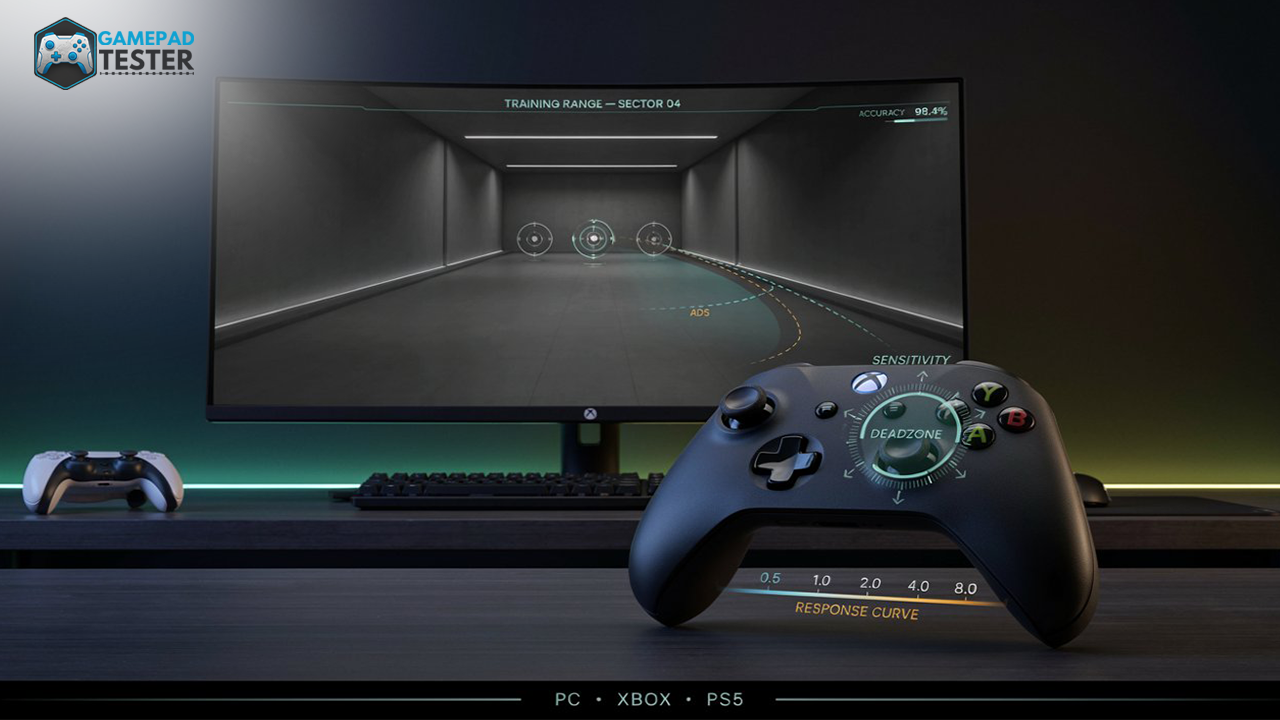
- Response curve, how sensitivity scales as you push the stick further from center. Linear, Dynamic, Aggressive, and Precision curves all feel different at the same displayed number, because they change how quickly speed ramps up as you push further out.
- Deadzone, the small area around the stick’s center where input is ignored. This is a separate setting from sensitivity, and it gets confused with it constantly. Our guide on what controller deadzone actually does breaks down that distinction in detail.
- Aim assist, console-specific slowdown or rotational magnetism applied near enemy targets. It effectively changes how sensitivity feels in a firefight even though the raw number has not moved at all.
Getting good aim is not about maxing out one slider. It is about getting these five layers to agree with each other, which is exactly why two players on the “same” sensitivity setting can feel completely different results.
Stick Sensitivity vs. Response Curve vs. Deadzone vs. Aim Assist
These four settings get lumped together constantly, but each one solves a different problem and fails in a different way.
| Setting | What it controls | Symptom when it’s wrong |
|---|---|---|
| Stick sensitivity | Overall speed of camera or crosshair movement | Turns feel too slow to react, or you overshoot targets constantly |
| Response curve | How sensitivity ramps up as you push the stick further from center | Small movements feel fine but full pushes feel unpredictable, or the reverse |
| Deadzone | The dead area around stick center that ignores input | Micro-adjustments feel delayed, or the stick seems to drift slightly on its own |
| Aim assist | Console-only slowdown or magnetism near targets | Aim feels inconsistent specifically during fights, but fine everywhere else |
If your sensitivity feels fine in menus and open areas but strange only when tracking a target, the problem is almost always response curve or aim assist, not the base sensitivity number. This is the single most common misdiagnosis players make, and it leads to endlessly re-adjusting a setting that was never broken.
How to Adjust Controller Sensitivity on PC
On PC, sensitivity can live in three different places depending on how your controller is connected, and mixing them up is the most common reason PC players end up with sensitivity that feels “too fast no matter what I change.”
Option 1: In-game settings (start here)
- Open the game’s settings menu and look for Controller, Gamepad, or Input settings.
- Find Look Sensitivity or Camera Sensitivity, usually split into horizontal and vertical values.
- Adjust in small increments of 5 to 10 percent at a time, and test in a menu or practice area before committing to a match.
- If the game has a separate ADS Sensitivity Multiplier, set that after your base sensitivity already feels right, not before.
In-game settings override most other layers, which is why they should be your first stop and your last check whenever something feels off.
Option 2: Steam Input (for games launched through Steam)
If you are using Steam Input, it applies its own sensitivity layer on top of, or instead of, the game’s native controller support. This is exactly why sensitivity can suddenly feel doubled or halved after a Steam update, even though you changed nothing yourself.
- Open Steam’s Big Picture overlay, or press Shift+Tab during a game.
- Click the controller icon, then select Edit Layout.
- Select Joysticks, then click the gear icon on the stick you want to adjust.
- Choose an Input Mode, usually Joystick Camera for shooters, and adjust the Sensitivity Scale slider.
- If turns still feel inconsistent, check Advanced Settings for a custom response curve.
If a game supports native controller input and you do not need Steam Input’s remapping features, disabling Steam Input for that title often removes a whole layer of sensitivity conflict at once. If you have not connected your controller through Steam or Windows before, our guide on using a controller on PC covers the setup basics before you get into tuning.
Option 3: Windows-level settings
Windows does not offer a dedicated controller sensitivity setting the way it does for a mouse. This route is really just confirming your controller is connected and recognized correctly, rather than tuning feel, so treat any Windows-level controller panel as a diagnostic step rather than a sensitivity control.
How to Adjust Controller Sensitivity on Xbox
Xbox splits sensitivity into two layers: console-wide accessibility settings, and per-game sensitivity settings. The per-game settings almost always take priority, so start there.
- In the game, open Settings > Controller (naming varies slightly by title).
- Locate Stick Sensitivity, sometimes labeled Look Sensitivity or Turn Speed, and adjust horizontal and vertical values independently if the game allows it.
- Check for a separate ADS Sensitivity Multiplier and tune it after your base sensitivity feels stable.
- If the game supports it, adjust the Response Curve Type (Standard, Dynamic, Linear, or similar naming). This changes how sensitivity ramps, not just its top speed.
- For controller-wide adjustments outside any single game, go to Xbox Settings > Accessibility > Controller to adjust stick sensitivity system-wide. This mainly affects dashboard navigation rather than in-game aim.
If your Xbox controller’s aim has felt inconsistent since a recent title update, rule out drift before blaming sensitivity. Our guide on fixing stick drift explains how to tell the two apart.
How to Adjust Controller Sensitivity on PS5
The DualSense controller uses the same two-layer structure as Xbox: per-game settings for actual gameplay feel, and system-level accessibility settings for general navigation.
- In the game, go to Settings > Controller and find Stick Sensitivity or Camera Sensitivity.
- Adjust horizontal and vertical sensitivity separately, then set ADS or zoom sensitivity afterward if the game offers it.
- Some titles let you fine-tune Response Curve or Aim Assist Strength here too. Test these one at a time rather than all at once, so you know exactly what changed your feel.
- For system-wide stick behavior, not per-game aim, go to Settings > Accessibility > Controllers and adjust Stick Sensitivity there. This mostly governs menu and dashboard navigation.
- If sensitivity feels inconsistent right after connecting the controller, confirm it is properly calibrated first. Our PS5 controller calibration guide walks through resetting stick calibration, which sensitivity settings cannot fix on their own.
Xbox One users making the same adjustments can follow the equivalent process in our Xbox One controller calibration guide.
Recommended Starting Sensitivity Ranges
There is no universal “correct” sensitivity, since it depends on your reaction speed, screen size, and the game’s own internal scaling. The ranges below come from testing across common shooter genres and are meant as a tested starting framework, not a fixed target, so treat the number itself as far less important than how it feels once you apply the testing method in the next section.
| Playstyle / game type | Suggested starting base sensitivity | Suggested ADS multiplier |
|---|---|---|
| Slower, tactical shooters (tac-FPS, milsim) | 3 to 5 out of 10 | 0.8 to 1.0x |
| Standard competitive FPS (battle royale, arena shooters) | 5 to 7 out of 10 | 0.9 to 1.1x |
| Fast-paced arcade shooters | 7 to 9 out of 10 | 1.0 to 1.2x |
| General third-person or open-world games | 4 to 6 out of 10 | Not usually applicable |
Use these numbers for your first few sessions only. The right setting is whatever lets you track a moving target without lagging behind it or sailing past it, and that only becomes clear once you have played on it, not the moment you set it.
Why Does My Controller Sensitivity Feel Weird or Inconsistent?
This is one of the most common frustrations players search for, and it is rarely caused by the sensitivity slider itself. If your sensitivity feels different from session to session, or suddenly “off” after nothing seems to have changed, work through these causes in order.
1. A recent update reset your settings. Game and firmware updates frequently reset controller sensitivity to default values without any notification. Check your in-game settings first before assuming anything is broken.
2. Deadzone size is masking or exaggerating input. A deadzone that is too large makes small movements feel delayed, while one that is too small can make the stick feel like it is drifting or twitching on its own. This is routinely mistaken for a sensitivity problem when it is actually a deadzone problem. See what controller deadzone does for how to check and adjust it.
3. Stick drift is adding unwanted input. If your crosshair creeps in one direction even with the stick untouched, no sensitivity setting will fix that, because drift is a hardware symptom, not a calibration one. Our stick drift fix guide covers how to confirm and resolve it.
4. Frame rate is changing how fast sensitivity feels. In many games, camera turn speed is tied to frame rate rather than being a fixed value independent of performance. A drop in FPS during a demanding scene can make the exact same sensitivity setting feel noticeably slower or stuttery, which is easy to blame on the wrong setting.
5. Input lag is adding a delay that mimics low sensitivity. A sluggish response can look like a sensitivity issue even when the setting is correct, especially over Bluetooth or with a wireless dongle under interference. If turns feel like they are catching up a beat late rather than simply slow, that is a latency symptom. Our guide on testing controller latency explains how to check for this directly.
6. Multiple controllers are being detected at once. On PC especially, having a Steam Input virtual controller and the physical controller both active at the same time can cause sensitivity to effectively double, halve, or behave erratically. Check your controller settings menu for duplicate device entries.
7. Aim assist is compensating differently than expected. On console, aim assist actively slows your stick input near targets, either through rotational tracking or a straight slowdown effect depending on the game. If aim feels “sticky” specifically in fights but fine everywhere else, that is aim assist interacting with your sensitivity, not the sensitivity itself misbehaving.
8. The controller has not been calibrated. Especially after a firmware update or a long period of storage, stick calibration can drift slightly, changing how sensitivity translates into on-screen movement. Calibrating resets the stick’s baseline so sensitivity settings behave predictably again. See our guides on calibrating a PS5 controller or calibrating an Xbox One controller.
If none of these explain it, checking your controller’s raw input consistency directly, rather than relying on how a single game reports it, is the next step. Our controller polling rate guide explains how input frequency itself can contribute to a laggy or inconsistent feel that is easy to mistake for a bad sensitivity setting.
How to Dial In Your Personal Sensitivity (Step-by-Step)
- Start at a moderate baseline. Use the table above as a starting point rather than your current setting, especially if you have never deliberately tuned it before.
- Rule out hardware issues before tuning software. A quick check of stick input consistency and calibration takes two minutes and prevents you from chasing a sensitivity number that was never the actual problem.
- Test in a low-pressure environment. A practice range, bot match, or even free-looking around a menu is enough to judge basic feel before you take it into a real match.
- Track a single moving reference point. Follow a slow-moving object or player smoothly. If you consistently overshoot, lower sensitivity slightly. If you consistently undershoot or feel sluggish, raise it slightly.
- Adjust in small steps. Change sensitivity by 5 to 10 percent at a time. Large jumps make it hard to isolate what actually improved.
- Separate base sensitivity from ADS sensitivity. Get your general look sensitivity feeling right first, then tune your aim-down-sights multiplier on top of it.
- Give it real playtime before judging it. A setting that feels wrong for the first ten minutes often feels natural after a full session, since your muscle memory needs time to adjust too.
- Write down what works. Once you land on numbers that consistently feel right across a few sessions, note them down so a future reset or new game does not leave you guessing again.
Common Mistakes When Adjusting Controller Sensitivity
- Changing sensitivity mid-fight instead of in a controlled setting. You cannot isolate what is actually helping if you are adjusting under combat stress.
- Copying a pro player’s exact sensitivity. Their setting is tuned to their hand speed, screen size, and years of muscle memory, not yours.
- Adjusting sensitivity to compensate for stick drift or a bad deadzone. This masks the real problem instead of fixing it, and usually makes aim worse overall.
- Ignoring the response curve setting. Two players on the “same” sensitivity number can have a completely different feel if one is using a linear curve and the other a dynamic one.
- Forgetting that ADS sensitivity is separate. Tuning only base sensitivity while ignoring your aim-down-sights multiplier leaves half the equation unadjusted.
- Blaming sensitivity for what is actually input lag or a low polling rate. If aim feels delayed rather than simply slow, the fix is not a higher sensitivity number.
Final Thoughts
Controller sensitivity is less about finding one magic number and more about getting sensitivity, response curve, deadzone, and aim assist to work together instead of against each other. Once you understand which layer is actually causing a problem, whether it is a genuine sensitivity mismatch, a deadzone issue, input lag, or drift masquerading as bad settings, tuning it stops being guesswork. Start from a sane baseline, rule out hardware issues first, test deliberately, adjust in small steps, and give any new setting real playtime before judging it. As games continue to add more granular response curve and aim assist controls, the players who understand what each setting actually does will keep adapting faster than the ones still chasing a single “best” number.