How to Remap Controller Buttons on PC (Free Software Guide)
Hitting the wrong button in the final second of a match, or fumbling for a key that just doesn’t sit right under your thumb, is a small annoyance that adds up fast. The good news is that you don’t need to buy anything to fix it. Every major controller, whether it’s an Xbox pad, a PS5 DualSense, a DualShock 4, a Switch Pro Controller, or a generic USB gamepad, can have its buttons fully reassigned on PC using software that costs nothing.
We tested every method in this guide on our own hardware before writing it, not just researched it secondhand. That matters because remapping software behaves differently depending on whether a game reads raw controller signals (XInput or DirectInput) or accepts emulated keyboard input, and the only way to know which tools handle that gap well is to actually run them against real games.
This guide walks through the full remapping process using free tools only: Steam Input, the Xbox Accessories App, JoyToKey, AntiMicroX, and DS4Windows for older PlayStation pads. You’ll learn which tool fits your controller and your games, the exact steps for each, how remapping interacts with deadzones and input latency, and how to fix the most common problems people run into afterward.
How to Remap Game Controller Buttons on PC for Any Game
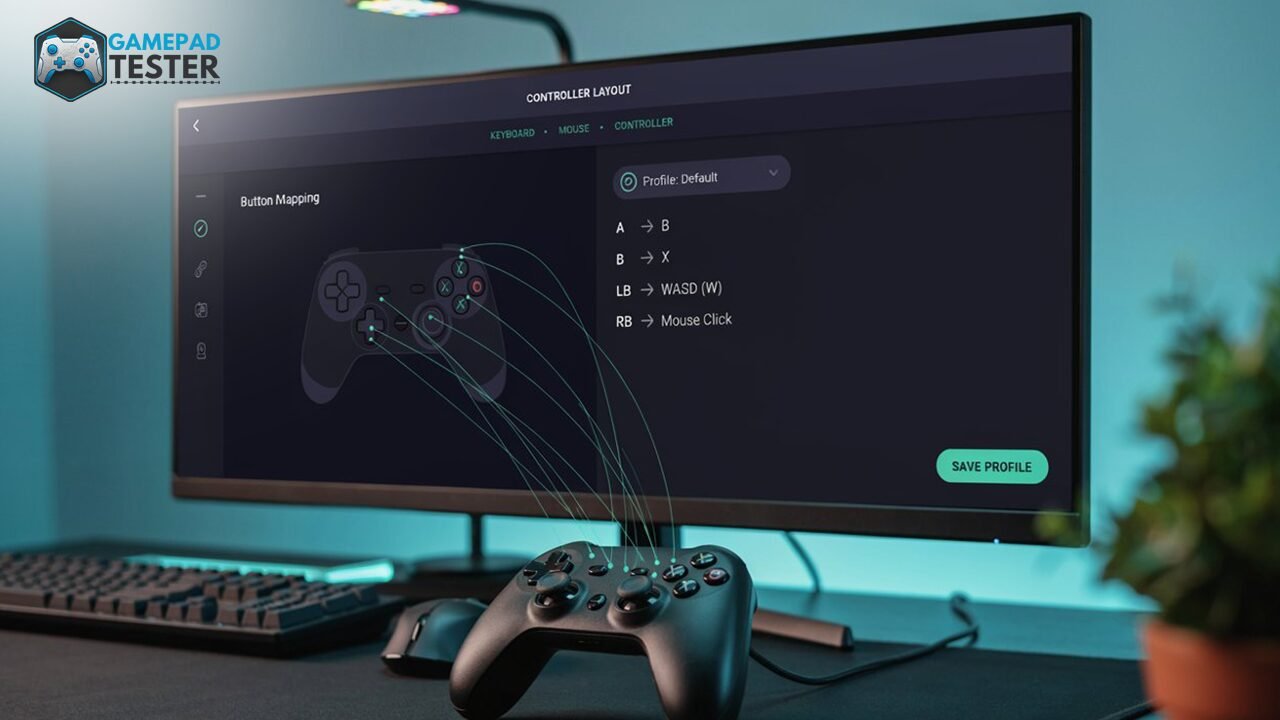
To remap controller buttons on PC, connect your controller via USB or Bluetooth, open a free remapping tool that matches your setup, then select the button you want to change and assign a new action to it.
- Connect your controller to your PC and confirm Windows detects it.
- Open a free remapping tool: Steam Input (any controller, any game), Xbox Accessories App (Xbox pads only), JoyToKey or AntiMicroX (any controller, keyboard/mouse output), or DS4Windows (DualShock 4 specifically).
- Select the button, assign the new action, and save the profile. Most tools let you press the physical button to select it instead of clicking through a list.
The rest of this guide breaks down each method in detail, because the right free tool depends heavily on your controller brand and what you’re trying to do with it.
Before You Remap: Confirm Your Controller Is Actually Detected
Every remapping tool depends on Windows correctly recognizing your controller first. If a button isn’t registering at all before you even open remapping software, no amount of reconfiguring will fix it. The problem sits upstream, at the connection or driver level, not in the remap. If you haven’t already set up your controller on PC, start with how to use a controller on PC to confirm drivers and connection are working, whether you’re on Xbox, PlayStation, or a third-party pad.
It’s also worth confirming your current button layout before changing it. If you want to see exactly which inputs your controller is sending right now, run it through our gamepad and controller mapping test first. That page shows you what’s currently mapped, this guide is where you go to change it. Finally, rule out a hardware problem before you remap anything. If a button is physically unresponsive or a stick has drift, remapping will just move the problem to a different key instead of solving it.
What “Remapping” Actually Does (and What It Doesn’t)
Remapping a controller button means changing what signal your PC receives when you press it, without touching the controller’s hardware or firmware. The controller still sends its original signal (a raw HID input), your remapping software intercepts that signal and translates it into a different action before your game or PC ever sees the original press.
This is why remapping is fully reversible and carries zero risk to your device. It also explains why some remaps behave differently across games: a tool like Steam Input can present the remap as native controller input (XInput), which most modern games accept without issue, while a tool like JoyToKey emulates keyboard keystrokes instead, which works everywhere but is treated by some games as a completely different input type than a controller press.
The Best Free Controller Remapping Software (2026)
There isn’t one “best” free tool. Each is built for a different job. Here’s how the main free options actually compare, based on our own testing across Xbox, PS5, DualShock 4, and Switch Pro controllers.
| Software | Cost | Best For | Controller Support | Keyboard/Mouse Mapping | Per-Game Profiles |
|---|---|---|---|---|---|
| Steam Input | Free | Any game launched through Steam, including non-Steam games added manually | Xbox, PlayStation, Switch Pro, most third-party pads | Yes | Yes, built in |
| Xbox Accessories App | Free | Simple button swaps on genuine Xbox controllers | Xbox controllers only | No | Limited |
| JoyToKey | Free (donationware) | Games with no native controller support, translating gamepad input into keyboard/mouse | Any controller Windows recognizes | Yes, this is its core function | Yes |
| AntiMicroX | Free, open source | Advanced users who want detailed control without Steam running | Any controller Windows recognizes | Yes | Yes |
| DS4Windows | Free, open source | Older DualShock 4 controllers that need XInput emulation on PC | DualShock 4 (and DualSense via community forks) | Yes | Yes |
Steam Input is the strongest all-around free option because it works with virtually every controller and every game, Steam or not, and it doesn’t require the Steam overlay to be visible during play. It also runs Steam Big Picture Mode, which lets you navigate your entire PC with a controller if you set that up as well. The other options exist for specific gaps: Xbox-only simplicity, keyboard-only games, non-Steam power users, and legacy DualShock 4 support.
Method 1: Remap Any Controller With Steam Input (Free, Works With Every Game)
Steam Input is the most reliable free option because it works at the system level for any game added to your Steam library, including non-Steam games.
- Open Steam and go to Settings > Controller > General Controller Settings.
- Make sure your controller type is checked (Xbox Configuration Support, PlayStation Configuration Support, or Generic Gamepad Configuration Support, depending on your pad).
- If you’re remapping for a non-Steam game, right-click it in your Library and choose Add to Steam if it isn’t already listed, then right-click that entry and select Properties > Controller to access its layout.
- Click Controller Layout for the game you want to remap.
- Click on the physical button you want to change, or select it from the on-screen diagram.
- Choose the new action from the list. This can be another controller button, a keyboard key, or a mouse click.
- Save the configuration. Steam applies it automatically whenever that game launches with a controller connected.
This method is worth using first because a single Steam Input profile can apply across your whole library with per-game overrides, so you’re not rebuilding a layout from scratch for every title. In our testing, this was also the only free method where remapped inputs were reliably read as native controller signals rather than emulated keys, which matters for games with strict anti-cheat or input validation.
Method 2: Remap Xbox Controller Buttons With the Xbox Accessories App
If you’re specifically using a genuine Xbox controller and want a lightweight, official option, Microsoft’s own app is the simplest path.
- Install the Xbox Accessories App from the Microsoft Store.
- Connect your Xbox controller via USB or Bluetooth.
- Open the app, select your controller, and go to Customize.
- Choose Basic Remap to swap standard buttons, or use a saved profile slot to store the layout.
- Select the button, assign a new function from the available list, and save.
This app is limited to basic button swaps between existing controller inputs. It can’t map to keyboard keys or build macros. For that level of control on an Xbox pad, Steam Input or JoyToKey is the better free choice.
Method 3: Remap PlayStation (DualSense/DualShock) Controller Buttons on PC
PlayStation controllers don’t have an official Microsoft-equivalent remapping app on PC, so JoyToKey, DS4Windows, and Steam Input are the realistic free routes.
Using JoyToKey:
- Download and install JoyToKey, then connect your DualSense or DualShock 4 controller.
- Launch JoyToKey. It should auto-detect the controller and create a new profile tab.
- Click a button on the on-screen diagram, matching it to your physical DualSense button layout if you need a reference.
- Assign the keyboard key, mouse action, or macro you want that button to trigger.
- Save the profile and set it to auto-load when you open a specific game’s executable, under the profile’s Auto Change Profile settings.
Using DS4Windows (best for older DualShock 4 pads): DS4Windows converts your controller’s signal into an emulated Xbox (XInput) controller, which solves compatibility problems in games that don’t natively support PlayStation input. Install it, connect your DualShock 4, and use its built-in profile editor to reassign buttons directly, the same way you would in Steam Input.
Using Steam Input: the same steps from Method 1 apply directly to DualSense and DualShock controllers, and Steam handles PlayStation-to-Xbox input translation automatically, so most games treat the remapped buttons as native controller input rather than emulated keystrokes.
Method 4: AntiMicroX for Any Controller (Open Source, No Steam Needed)
AntiMicroX is the go-to option if you want detailed control without running Steam in the background, or if you’re remapping for non-game desktop use.
- Download AntiMicroX (available for Windows and Linux) and install it.
- Connect your controller. It should appear automatically in the left-hand device list.
- Click a button on the visual controller diagram.
- Set the mapped output: keyboard key, mouse click, macro, or a combination triggered by a modifier button (a button that changes what other buttons do while held).
- Adjust stick deadzones and sensitivity curves if needed. This matters more than most guides mention, since a remapped stick with the wrong deadzone can feel worse than the default. Learn more about what a controller deadzone actually does before adjusting it. If your stick already drifts, fix that first with how to fix stick drift.
- Save the profile and link it to a specific application under Options > Set Program.
AntiMicroX is open source, actively maintained, and doesn’t require any account or launcher, which makes it a solid choice for people who want a self-contained tool.
How to Remap a Switch Pro Controller on PC
Switch Pro Controllers connect to PC over Bluetooth and are recognized by both Steam Input and JoyToKey. Steam Input is the more reliable of the two because it has native Switch Pro Controller support built in, including motion controls, without needing a separate driver. Follow the same steps as Method 1. Steam will detect it as a Switch Pro Controller specifically once connected and show the correct button diagram for remapping.
Remapping and Browser-Based Games (What Most Guides Skip)
If you’re remapping for a game that runs in your browser rather than through Steam or a standalone launcher, none of the tools above will touch it the same way. Browser games typically read controller input through the HTML5 Gamepad API, a web standard that most remapping software doesn’t intercept directly. In practice, this means AntiMicroX and JoyToKey’s keyboard-emulation approach tends to work fine for browser games since the browser just sees keystrokes, but Steam Input’s native controller remapping often won’t apply inside a browser tab at all. If a remap works in your desktop apps but not in a browser game, this API-level difference is almost always why.
Does Remapping Affect Input Lag or Response Time?
No, not meaningfully. Software remapping adds a negligible amount of processing between your button press and the game receiving it, well under a millisecond in most cases, which is not something players will notice during normal play. If you’re chasing competitive-level responsiveness and want to confirm your setup isn’t introducing lag, you can measure it directly with how to test controller latency. Controller polling rate has a far bigger effect on responsiveness than remapping software ever will.
Which Free Remapping Method Should You Use?
| Situation | Recommended tool |
|---|---|
| You mostly play games through Steam | Steam Input |
| You use a genuine Xbox controller and want simple swaps only | Xbox Accessories App |
| You’re playing an older game with no native controller support | JoyToKey |
| You want deep macro/modifier control without Steam running | AntiMicroX |
| You’re using a DualSense controller | Steam Input or JoyToKey |
| You’re using an older DualShock 4 controller | DS4Windows or Steam Input |
| You’re using a Switch Pro Controller | Steam Input |
| You’re remapping for a browser-based game | JoyToKey or AntiMicroX |
Common Button Remap Problems (and Fixes)
- The remap isn’t saving between sessions. Most tools save per-profile, not globally. Double-check the profile is set to auto-load for that specific game or executable, otherwise it reverts to default the next time you launch it.
- The remap works on the desktop but not inside the game. Some games read raw controller input directly (XInput or DirectInput) and ignore software-level remaps, especially keyboard-emulated ones from JoyToKey. Steam Input tends to have better compatibility here because it can present the remap as native controller input rather than an emulated key.
- A specific button still isn’t registering after remapping. Before assuming the software is at fault, rule out a hardware issue. Check whether the trigger or button is physically stuck or sticky, and confirm the controller itself is functioning correctly.
- Stick input feels off after remapping. This is usually a deadzone or calibration issue, not the remap itself. Recalibrate your controller (PS5 or Xbox) depending on your pad.
- The controller disconnects mid-session after setting up a remap. This is almost always unrelated to the remap itself and points to a connection issue, often linked to low battery. Check your controller’s battery level first, then look into why the controller keeps disconnecting for the full fix.
- Vibration stopped working after installing remapping software. This is a separate issue from remapping itself, since button mapping and rumble motors are controlled independently. If vibration feels broken, that points to a rumble/motor issue rather than anything related to your button mapping.
Button Remap Ideas Worth Trying
| Remap | Why players use it |
|---|---|
| Swap jump from A/X to a shoulder button | Keeps thumb on the right stick for aiming while jumping |
| Map back paddles or extra buttons to reload/crouch | Frees up face buttons during fast-paced combat |
| Swap sprint from click-in stick to a bumper | Reduces accidental stick clicks during movement |
| Map a rear button to the map/menu key | Avoids losing aim to check the map mid-fight |
| Assign a macro to a single button for repetitive actions in strategy or building games | Cuts down on repeated multi-key sequences |
Quick Setup Checklist
Before you consider your remap finished, confirm each of these:
- Controller connects and is detected by Windows without dropouts
- Correct remapping tool selected for your controller brand and game type
- Profile saved and set to auto-load for the specific game or executable
- Buttons tested in-game, not just on the tool’s diagram screen
- Deadzones and calibration checked if any stick feels different after remapping
Final Thoughts
Remapping controller buttons on PC doesn’t require paid software or advanced technical knowledge. It requires picking the right free tool for your controller and being willing to spend a few minutes testing the result. Steam Input covers most people’s needs on its own, while JoyToKey, AntiMicroX, and DS4Windows fill in the gaps for keyboard-emulated input, non-Steam workflows, and legacy PlayStation controllers. As more games ship with native per-button remapping built in and Steam Input continues absorbing features once exclusive to third-party tools, expect fewer people to need external software at all within the next couple of years. Until then, these five free tools cover essentially every controller and every use case on PC today.