What Is the HTML5 Gamepad API? How Browser Controller Testing Works
The HTML5 Gamepad API is a browser standard that lets a webpage read live input from a connected game controller, including button presses, trigger pressure, and stick position, using navigator.getGamepads(). It requires no driver installation and no data ever leaves your browser. This is the exact technology our own gamepad tester is built on. Plug a controller into your laptop, open a tab, press a button, and somehow a website knows exactly which stick you moved and how far. No driver install, no app, no login. That is the HTML5 Gamepad API doing its job quietly in the background.
If you have ever wondered why a gamepad tester asks you to “press any button to wake it up,” why some sites can feel your trigger pressure but others only see on or off, or why vibration works on one browser and not another, the answers all trace back to this one browser API. This guide breaks down what the Gamepad API actually is, what data it reads from your controller, how browsers turn that raw data into the live button and stick readouts you see on screen, and why testing behavior differs between Chrome, Firefox, and Safari.
Want to see it in action instead of just reading about it? Open our HTML5 Gamepad API-based tester and press any button on your controller. Everything described below happens in real time on that page.
What Is the HTML5 Gamepad API?
The HTML5 Gamepad API is a browser standard that lets JavaScript running on a webpage read the live state of a connected game controller. It exposes button presses, trigger pressure, and analog stick position through navigator.getGamepads() and two window events: gamepadconnected and gamepaddisconnected.
It works entirely client-side. No server ever receives your input data, and no driver installation is required beyond what your operating system already uses to recognize the controller over USB or Bluetooth.
The API was developed under the Gamepad API specification as part of a broader push, alongside Canvas, WebGL, and the Web Audio API, to let browsers handle rich interactive experiences that once required native applications or plugins. Every major desktop browser engine, Chromium (Chrome, Edge), Gecko (Firefox), and WebKit (Safari), now implements the core specification. That shared implementation is exactly why a controller tester built on this API can read the same hardware in any of these browsers without separate code paths for each device.
How the Gamepad API Detects a Controller
Detection is not automatic the moment you plug something in, and this trips up a lot of first-time testers. Here is what actually happens, step by step:
- You connect the controller via USB or pair it over Bluetooth (or Bluetooth LE, depending on the device) at the operating system level.
- The browser sees the device, but does not yet expose it to the webpage.
- You press a button or move a stick. This user interaction (technically called a “user activation”) is what triggers the
gamepadconnectedevent and hands the page aGamepadobject. - The page can now poll the controller’s state on every animation frame.
That third step is deliberate, not a bug. Browsers withhold gamepad data until you physically interact with the device, specifically to prevent websites from silently fingerprinting you based on which controllers you own before you have given any signal of consent. It is the same privacy logic behind camera and microphone permission prompts, just implemented as a physical-interaction gate instead of a popup.
If a page says “waiting for controller” even though it is plugged in, this is almost always why. For the full breakdown of detection failures beyond this step, see our guide on why your controller isn’t being detected.
What Data the Gamepad API Actually Reads
Once connected, the Gamepad object exposes a fixed set of properties. This is the raw material every browser-based tester, including ours, is built on:
| Property | Type | What It Tells You |
|---|---|---|
id | String | Identifies the controller, typically including USB vendor/product IDs and driver name |
index | Integer | A unique slot number for this controller, used when multiple are connected |
connected | Boolean | Whether the controller is currently active |
mapping | String | Whether the browser has normalized the layout to the “standard” gamepad profile |
buttons | Array of GamepadButton | Each button reports both a pressed boolean and an analog value from 0.0 to 1.0 |
axes | Array of numbers | Analog stick positions, each ranging from -1.0 to 1.0 per axis |
timestamp | DOMHighResTimeStamp | The last time this controller’s data was updated, used to detect stale or frozen input |
vibrationActuator | Object (where supported) | Exposes haptic/rumble control; support varies significantly by browser |
Two details matter more than they look. First, triggers are reported through the same buttons array as face buttons, but with an analog value instead of a simple on/off. That is exactly why some controllers report trigger pressure smoothly while others jump straight from 0 to 1, it depends on whether the browser mapped that specific input as analog or digital for that connection type. Second, axes values rarely sit at a perfect 0.0 when a stick is untouched. Small nonzero readings at rest are the raw signal behind what you know as controller deadzone.
How Browser Controller Testing Actually Works
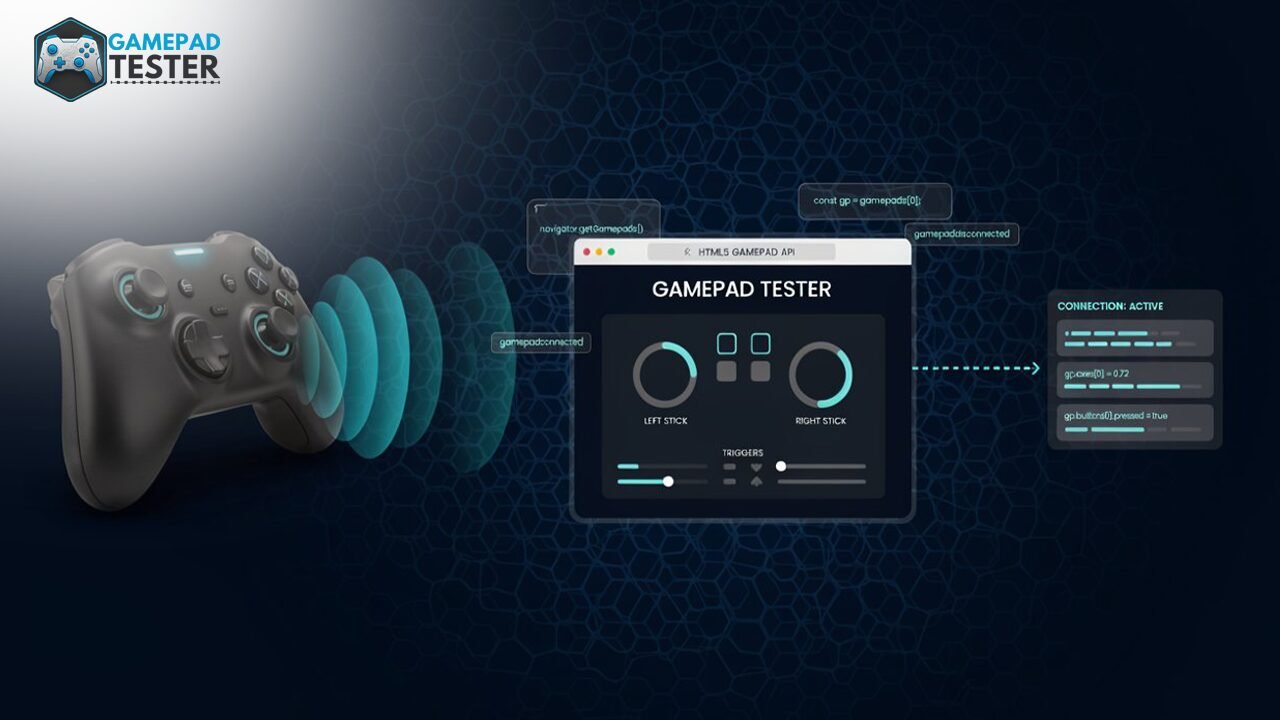
This is the part most explainer articles skip entirely. A “gamepad tester” is not a special browser feature. It is regular JavaScript doing three things in a continuous loop:
Step 1: Listen for connection. The page registers a gamepadconnected listener and waits for interaction.
Step 2: Poll on every frame. Using requestAnimationFrame, the page repeatedly calls navigator.getGamepads() and reads the current buttons and axes values, typically 60 times per second, matching your display’s refresh rate.
Step 3: Render the state visually. Each button’s pressed and value properties get mapped to a highlighted region on screen, and each axis value moves a visual stick indicator. What you see updating in real time is a direct, unfiltered translation of the numbers the browser just read from your hardware.
When we test controllers on our own tool, this is precisely the loop running behind every button flash and stick movement you see on screen. Nothing is simulated or smoothed for effect. If a button flickers or a stick jitters on screen, that reflects a real signal the browser just received.
This polling-based design is also why testing latency is a measurable thing rather than a vague feeling. The timestamp property lets a page calculate exactly how long it takes for a physical press to reach the browser. If you want to measure this yourself, see how to test controller latency, and for how frame rate interacts with input read frequency, see our guide on controller polling rate.
Browser Support in 2026
Core detection and input reading is essentially universal on desktop, but haptics and edge-case behavior still diverge between browser engines:
| Browser | Button/Axis Detection | Vibration/Haptics | Notes |
|---|---|---|---|
| Chrome / Edge (Chromium) | Full support | Full support | Most consistent behavior across controller types |
| Firefox (Gecko) | Full support | Limited/no rumble support | Reads input reliably; does not expose the Vibration Actuator API in most builds |
| Safari 16.4+ (WebKit) | Full support | Partial support | Improved significantly in recent versions; still narrower device coverage than Chromium browsers |
| Mobile Chrome (Android) | Supported with a connected controller | Varies by device | Works via USB-OTG or Bluetooth pairing |
If a tester says your buttons and sticks work fine but vibration “does nothing,” that is very likely a browser limitation, not a broken controller. This is one of the most common false alarms in testing; see controller vibration not working for the full breakdown by browser and controller type.
Gamepad API vs. Other Ways to Read Controller Input
| Approach | Runs In-Browser? | Setup Required | Best For |
|---|---|---|---|
| HTML5 Gamepad API | Yes | None, just a browser | Browser games, quick online testers, accessibility tools |
| WebHID API | Yes | User grants device permission per device | Reading device-specific features standard mapping doesn’t cover, like DualSense adaptive trigger resistance |
| Native input libraries (SDL, XInput, DirectInput) | No | Requires an installed application | Native PC games, professional QA tooling, low-level diagnostics |
| Game engine input plugins (Unity, Unreal) | No, unless exported to WebGL | Requires engine and build pipeline | Full game development with cross-platform controller support |
The Gamepad API deliberately trades some depth (it cannot control PS5 DualSense adaptive trigger resistance, for example, and it cannot access Xbox Elite Series paddle remapping directly) for zero-friction access. That trade-off is exactly why it is the right tool for a browser-based tester: anyone can run it in seconds with nothing installed, on nearly any device.
What Developers Actually Use the Gamepad API For
- Browser-based games, especially racing and fighting genres where keyboard input is a poor substitute for analog control
- Accessibility tooling, mapping alternative input devices to standard gamepad-shaped signals for users who need them
- Hardware diagnostics and testing tools, exactly what our own tester is built on, reading raw button, axis, and timestamp data and rendering it visually so you can catch a dead button, uneven trigger travel, or a drifting stick without installing anything
- Cloud gaming and streaming interfaces, where browser-native input reduces the need for a locally installed client
- Streaming overlays, displaying live controller input on screen for viewers, built on the same polling loop described above
Common Testing Issues, Explained by the API Itself
Understanding the mechanism above makes most “why is this happening” questions self-explanatory:
- Controller not detected at all almost always traces back to the interaction requirement covered earlier. See why is my controller not working.
- Controller randomly disconnects mid-test is usually a Bluetooth power-management or USB port issue at the operating system level, not the API itself. See why does my controller keep disconnecting.
- Stick drifts on screen with no input reflects real nonzero
axesvalues at rest, a hardware wear issue the API is simply reporting accurately. See how to fix stick drift. - Trigger reads as fully on or fully off with no in-between means the browser mapped that trigger as digital rather than analog for that specific controller and connection type.
- Vibration test does nothing is very likely a browser limitation, as shown in the support table above, not a broken motor.
- Input feels delayed can be measured directly using the
timestampproperty. See the latency and polling rate guides linked above to isolate wireless lag from browser lag.
How to Test Your Own Controller Right Now
- Connect your controller by USB, or pair it over Bluetooth. If you need setup steps first, see how to connect a PS4 or PS5 controller to a PC or how to connect an Xbox gamepad to a PC.
- Open our Gamepad API-based tester in Chrome, Edge, or Firefox for the broadest support.
- Press any button to trigger detection. This wakes the
gamepadconnectedevent. - Watch each button, trigger, and stick respond live as you test it.
- If something reads strangely, check whether it matches a known drift or deadzone pattern before assuming the hardware is faulty, and calibrate your controller if your platform supports it.
The Bottom Line
The HTML5 Gamepad API is a small, deliberately simple browser standard, but it is the entire reason you can plug in a controller, open a tab, and immediately see accurate, real-time input without installing anything. Every button readout, stick position, and trigger value you see in a browser-based tester traces back to the same three-step loop: wait for interaction, poll on every frame, render what the hardware reports.
Understanding that loop turns confusing testing results, false disconnects, phantom drift, silent vibration, into things you can actually diagnose. As WebHID adoption grows, expect browser testing tools to eventually expose deeper device-specific features like adaptive trigger resistance, but the Gamepad API will remain the fast, no-install foundation for basic controller testing for the foreseeable future.
Ready to see your own controller’s raw input data? Test your controller now, no downloads, no sign-up, just press a button.