
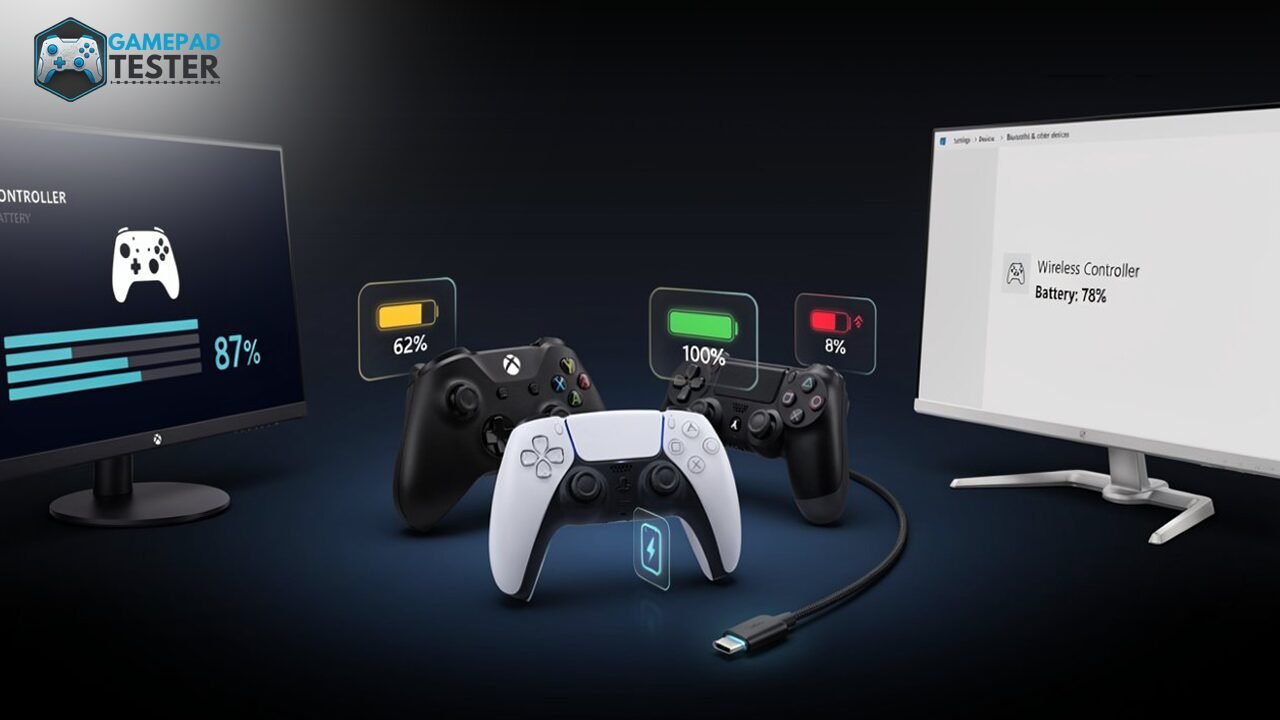
How to Check PS5 Controller Battery Level (Xbox, PS4 & PC)
To check your PS5 controller’s battery, press the PS button to open the Control Center, then go to Accessories, where you’ll see a battery bar rather than an exact percentage. For an exact number, connect the DualSense to a PC through Steam or DS4Windows. Xbox and PS4 controllers follow a similar pattern: quick visual checks on console, precise percentages on PC.
A dying controller with no warning is one of the most avoidable ways to lose a match. The frustrating part is that PS5, Xbox, and PS4 controllers all report battery differently, and PC only adds more confusion, since Windows, Steam, and each console’s own menu can show three different numbers for the same controller.
This guide walks through every reliable way to check battery level on a DualSense, an Xbox Wireless Controller, and a DualShock 4, on console and on PC. It also covers why the number you see is often an estimate rather than a precise reading, what a fast browser-based check looks like, and how to actually extend battery life instead of just monitoring its decline.
Quick Answer: Battery Check Methods by Device
| Controller | On Console | On PC |
|---|---|---|
| PS5 DualSense | PS button → Control Center → Accessories | Steam Big Picture, Windows Bluetooth settings, or a browser-based gamepad tester |
| Xbox Wireless Controller | Xbox button → battery icon (bottom-right) | Xbox Accessories app, Xbox Game Bar (Win+G), or Windows Bluetooth settings |
| PS4 DualShock 4 | PS button → battery icon (top-right) | Steam Big Picture, or a browser-based gamepad tester |
How to Check PS5 DualSense Controller Battery
On the PS5 Console
- Press the PlayStation button on your controller to open the Control Center.
- Navigate to the Accessories tab.
- Your controller’s battery appears as a set of bars, not a percentage.
Sony doesn’t show a numeric reading on the console itself. Each bar represents roughly 20% of charge, so a single remaining bar usually means about an hour or two of playtime, though that estimate drops fast once adaptive triggers, haptic feedback, and the light bar are all working at once. If you own a DualSense Edge, the same bar system applies, and the back paddles and extra haptic profiles will drain it slightly faster than a standard DualSense under identical use.
On PC (Windows)
If you want an exact percentage instead of bars, PC is the more precise option.
Via Steam:
- Connect your DualSense by USB-C or Bluetooth.
- Open Steam and enter Big Picture Mode.
- Check the battery icon in the top-right corner of the home screen.
- If it isn’t visible, go to Settings > Controller > General Controller Settings and enable Show Battery Percentage in Header.
Via Windows Bluetooth Settings:
- Go to Settings > Bluetooth & devices > Devices.
- Find your DualSense in the list.
- Windows sometimes shows a battery percentage next to the controller name, but this depends on your PC’s Bluetooth chipset and drivers, so support varies from one machine to another.
Via DS4Windows:
- Install DS4Windows and open it.
- Connect your controller by USB or Bluetooth.
- Open the Controllers tab and check the Battery column for an exact percentage and charging status.
If you haven’t paired your DualSense to a PC yet, our guide on connecting a PS4 or PS5 controller to a PC covers pairing before you get to battery checks.
How to Check Xbox Controller Battery
On Xbox Console
- Press the Xbox button on your controller while it’s on.
- Press it a second time on the Home screen.
- The battery indicator appears in the lower-right corner and turns red when critically low.
If your controller is connected by USB cable, the icon shows a plug symbol instead of a percentage, since a wired controller charges rather than reports remaining battery. This applies to both the standard Xbox Wireless Controller and the Xbox Elite Controller Series 2, which uses the same battery reporting behavior despite its extra paddles and hair-trigger locks.
On PC (Windows)
Via the Xbox Accessories app (most accurate):
- Open the Xbox Accessories app from the Microsoft Store.
- Select your connected controller.
- View the battery section for exact percentage and overall battery health.
Via Xbox Game Bar:
- Press Win + G to open Game Bar.
- A battery icon appears near the top. Add the controller widget through the + icon if it isn’t showing.
- Game Bar sometimes displays a cached reading rather than a live one, so if the number looks stuck, check Bluetooth settings instead.
Via Windows Bluetooth Settings:
- Go to Settings > Bluetooth & devices.
- Click your Xbox controller and view the percentage listed below its name.
- This only works over a direct Bluetooth connection, not the proprietary Xbox Wireless Adapter, which uses its own reporting method and won’t show a battery percentage through Windows Bluetooth settings at all.
If your Xbox controller isn’t detected on PC, our guide on connecting an Xbox gamepad to PC covers pairing before you troubleshoot battery display issues.
How to Check PS4 DualShock 4 Controller Battery
On PS4 Console
- Press the PS button to wake the controller.
- Look at the top-right corner of the home screen for the battery icon.
- For a more detailed reading, go to Settings > Devices > Controllers.
On PC
The DualShock 4 doesn’t have a dedicated first-party PC app the way the DualSense and Xbox controllers do, so your options are narrower.
Via Steam:
- Connect by USB or a DualShock 4 USB wireless adapter.
- Open Settings > Controller > General Controller Settings.
- Your connected DS4 will display its battery level next to its name.
Via DS4Windows: The process is identical to the DualSense, since DS4Windows was originally built for the DualShock 4 and later extended to support the DualSense.
Check Any Controller’s Battery Instantly in Your Browser
If installing DS4Windows or the Xbox Accessories app just to glance at a number feels like overkill, most modern browsers can read battery data directly through the Gamepad API. That’s what powers our free Battery Level Tester, a zero-install tool that reads live percentage, charging status, and a general health indicator the moment you connect a controller. It works for PS5 DualSense, PS4 DualShock 4, and other controllers that expose detailed battery data over Bluetooth.
This is the fastest way to sanity-check a reading when Windows or Steam shows you something that doesn’t add up, and it pairs naturally with our tools for testing controller latency and diagnosing why a controller keeps disconnecting, since a failing battery is one of the most common causes of random disconnects.
Why Your Battery Percentage Isn’t Always Exact
If your controller has ever jumped straight from 100% to 20% with nothing in between, that’s not a bug. Most controllers, including the DualSense, don’t measure charge continuously. The battery management chip inside reports charge in discrete steps, roughly every 10%, so no software, including DS4Windows or Steam, can display a number more precise than what the hardware itself sends. The app you’re using isn’t the limitation. The chip is.
A more useful way to read your battery data: if a controller drops from a healthy reading to near-zero within an hour of normal play, that’s usually a sign of battery degradation rather than a reporting error, especially in older controllers that have been through hundreds of charge cycles. Lithium-ion batteries lose capacity gradually and permanently, and no software update changes that curve.
Calibration Drift and Battery Readings
Occasionally what looks like a battery problem is actually something else reporting incorrectly, most often stick drift or a miscalibrated controller drawing extra power to compensate for constant micro-input signals. If your battery seems to drain unusually fast and your character or cursor drifts slightly even when you’re not touching the stick, check calibration before assuming the battery itself is at fault. Our guides on calibrating a PS5 controller and calibrating an Xbox One controller walk through fixing this.
Battery Life Comparison by Controller Type
| Controller | Typical Battery Life | Fastest Drains |
|---|---|---|
| PS5 DualSense | 6-12 hours | Adaptive triggers, haptic feedback, light bar |
| Xbox Wireless Controller (AA batteries) | 20-30 hours (alkaline) | Vibration, wireless range |
| Xbox Wireless Controller (rechargeable pack) | 8-12 hours | Vibration, LED |
| PS4 DualShock 4 | 4-8 hours | Light bar, touchpad, vibration |
If vibration seems to be draining your controller faster than these numbers suggest, or the motors feel inconsistent, confirm they’re actually working correctly with our guide on controller vibration not working.
What Happens When the Battery Hits 0%
Most controllers will vibrate briefly or flash their light bar or Xbox button as a final warning before shutting down. Once the battery hits zero, the controller disconnects immediately and any unsaved input is lost, though this rarely affects game saves themselves. Plugging the controller into a USB-C or micro-USB cable will usually let you keep playing wired within a few seconds, even before it’s meaningfully recharged, since most controllers can operate wired at effectively zero battery.
One thing worth knowing: not every USB-C cable transmits data. Some cheaper cables are charge-only, which means the controller will charge but won’t be recognized as an input device on PC. If a wired controller charges but doesn’t respond to input, try a different cable before assuming the controller itself is faulty.
Third-Party and Older Controllers
Third-party controllers and older Bluetooth peripherals don’t always expose battery data the same way first-party controllers do. Some report through Bluetooth Classic instead of Bluetooth LE, which Windows and Steam read differently, and a few budget controllers don’t report a percentage at all, only a binary “low battery” flag. If a third-party controller shows no battery reading anywhere, that’s often a limitation of the controller’s firmware rather than a setup mistake on your end.
How to Extend Your Controller’s Battery Life
- Power off completely instead of leaving it on standby. A DualSense left on standby keeps draining even when you’re not actively playing.
- Disable the light bar and haptics for non-competitive sessions if your battery is already low.
- Use a wired connection during long sessions so you’re not draining the battery at all.
- Avoid extreme heat, since high temperatures degrade battery capacity over charge cycles, the same way they do on phones.
- Keep firmware updated. Controller firmware updates occasionally include power-management improvements, and an outdated controller can report battery less accurately or drain faster than it should.
- Check for stick drift or stuck triggers. A controller working harder than it needs to in order to register clean input can contribute to faster drain. Our guides on fixing stick drift and stuck or sticky triggers cover the most common causes.
Final Thoughts
Checking your controller’s battery shouldn’t be a guessing game. PS5 and PS4 controllers give you a fast visual on console but a far more precise reading on PC, while Xbox controllers stay fairly consistent across both. If you’re regularly unsure what’s actually left, a browser-based check is the quickest way to get a real answer without installing anything. As controllers pack in more battery-hungry features like adaptive triggers and richer haptics, expect battery visibility tools to become a standard part of managing your gear rather than an afterthought.