Controller Polling Rate Explained: What It Is and How to Test It Accurately
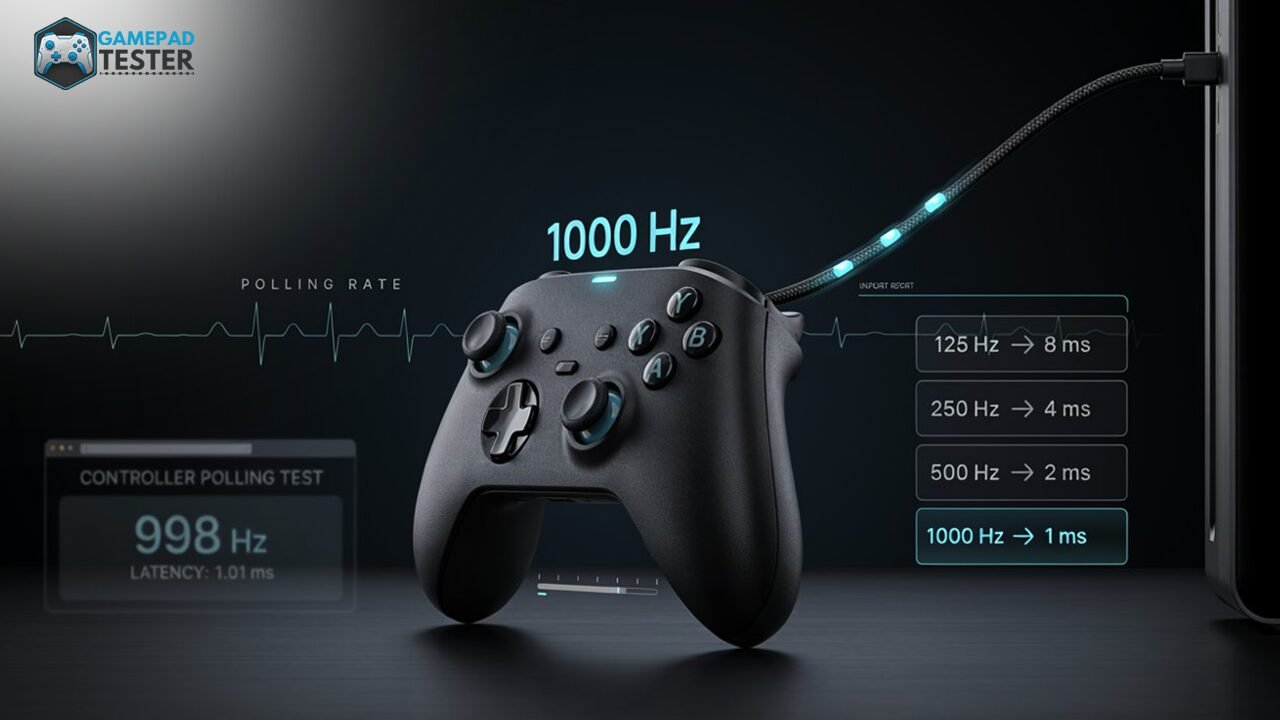
Controller polling rate is how often your gamepad sends a fresh input report (button states, stick positions, trigger values) to your PC or console, measured in Hertz (Hz). A 125Hz controller reports every 8 milliseconds. A 1000Hz controller reports every 1 millisecond. It is sometimes called “report rate,” and it is not the same thing as input latency, which measures the full delay from your physical press to the result appearing on screen.
Two controllers can both advertise “1000Hz” and still feel different in a fast shooter or fighting game, because polling rate is only one link in the responsiveness chain. Most players have never checked their actual polling rate, and when they do test it in a browser, the number often doesn’t match what the manufacturer claims. That mismatch is usually not a broken controller. It’s a misunderstood test.
This guide breaks down exactly what polling rate is, how PS5, PS4, Xbox, Switch, and third-party controllers compare in practice, why a browser-based test reads differently from the hardware spec, and how to test and raise your own polling rate correctly.
What Is Controller Polling Rate?
Controller polling rate, also called report rate, is the frequency at which your controller sends a new input report to the connected device. Every report bundles together the current state of your buttons, analog sticks, and triggers into a single packet using the HID (Human Interface Device) protocol that PCs and consoles use to read USB and Bluetooth peripherals.
A useful way to picture it: imagine a teacher checking the classroom for raised hands. At 125Hz, the teacher glances around the room 125 times per second. At 1000Hz, the teacher glances around 1,000 times per second. The more frequently the check happens, the sooner a raised hand gets noticed. Polling rate works the same way. It doesn’t make your hand go up faster. It just shortens how long that hand can go unnoticed.
What polling rate does not do is speed up how the game itself reacts once it receives your input. That part depends on the game engine, your GPU and CPU, your display, and your connection type, which is exactly where polling rate and latency start getting confused.
Polling Rate vs Input Latency: They Measure Different Things
This is the single most misunderstood part of the topic, and it’s worth being precise about it:
- Polling rate is a frequency, measured in Hz. It tells you how often your controller reports its state.
- Input latency is a duration, measured in milliseconds. It tells you the total time between your physical button press and the result appearing on screen, which includes polling delay plus game engine processing, rendering time, and display response time.
A higher polling rate can lower the maximum waiting time built into that one link of the chain, but it cannot touch engine processing time, GPU rendering time, or your monitor’s response time. If your controller feels generally sluggish rather than just slightly behind in fast-paced games, the real bottleneck is more likely full input latency, not polling rate on its own. For that kind of diagnosis, see our guide on how to test controller latency, which walks through measuring the complete press-to-screen delay rather than just report frequency.
How Polling Rate Is Measured: Hz to Milliseconds
Converting Hz to milliseconds is simple. Divide 1000 by the Hz value to get the maximum report interval.
| Polling Rate (Hz) | Report Interval (ms) | Typical Use Case |
|---|---|---|
| 125 Hz | 8 ms | Standard Bluetooth, most Xbox controllers, casual console play |
| 250 Hz | 4 ms | PS5/PS4 wired USB default, budget wired PC controllers |
| 500 Hz | 2 ms | Overclocked PC setups, a solid balance for most PC gamers |
| 1000 Hz | 1 ms | Competitive PC shooters, DS4Windows-overclocked pads |
| 8000 Hz | 0.125 ms | Enthusiast wired controllers (Razer Wolverine V3 Pro 8K, GameSir G7 SE) |
How We Verified These Numbers
Polling rate claims online are inconsistent because they get measured with different tools under different conditions. To keep the figures in this guide grounded, we cross-checked manufacturer specs against independent hardware testing sources, including community measurement tools like Gamepadla, the open-source Polling app, and the standard DS4Windows and hidusbf overclocking utilities that PC players actually use to change these settings.Where an official figure has never been published by a manufacturer, such as the exact console-side polling behavior on PS5 and PS4, we say so directly instead of presenting an estimate as confirmed fact. That distinction matters, because a lot of pages in this space state unverified numbers as if they were official specifications.
PS5 Controller Polling Rate (DualSense)
The DualSense’s polling rate depends heavily on how it’s connected, which is where a lot of the confusion online comes from:
- Wired USB on PC: 250Hz by default, a 4ms report interval.
- Bluetooth: Roughly 125Hz, an 8ms interval, and noticeably more prone to jitter than a wired connection.
- On the PS5 console itself: Sony has never published an official figure, and the console does not expose a polling setting to the player. Independent measurements generally place it in the same range as wired USB behavior on PC, around 250Hz.
- Overclocked on PC: Using DS4Windows, players commonly push the DualSense to 1000Hz over a wired USB connection. Some enthusiast tools and firmware experiments have pushed reports even further toward the DualSense’s theoretical 8000Hz ceiling, though stability at that level varies by cable, port, and driver version.
If you’re setting up a DualSense on PC to chase a higher polling rate, start with a reliable wired connection before touching any overclocking software. See our guide on how to connect a PS4 or PS5 controller to a PC to get a stable USB link first, since an unstable connection will make your Hz readings jump around no matter what software you install. If you’re setting up the DualSense generally rather than specifically for polling rate, our broader guide on how to use a controller on PC covers driver setup and input mode.
PS4 Controller Polling Rate (DualShock 4)
The DualShock 4 uses a very similar HID architecture to the DualSense, and its numbers land in the same range:
- Wired USB on PC: Around 250Hz.
- Bluetooth: Around 125Hz.
- On PS4 console: Not officially published, generally understood to sit near the same 250Hz ceiling as USB.
The practical difference between the two Sony pads isn’t really the polling ceiling. It’s connection stability. The DualSense’s USB-C port tends to sustain an overclocked 1000Hz rate more reliably than the DualShock 4’s older USB Micro-B port, especially when running through a hub or an older cable. If your DualShock 4 is misbehaving before you even get to testing polling rate, check our guide on how to calibrate a PS5 controller or why your controller isn’t working first, since drift or calibration issues can masquerade as responsiveness problems that have nothing to do with Hz.
Xbox Controller Polling Rate
Official Xbox controllers, including the Series X|S pad and Elite Series 2, report at roughly 125Hz in normal wired or wireless use. Microsoft has not shipped an official 1000Hz firmware for first-party controllers. The Xbox Wireless Adapter for Windows can improve consistency over standard Bluetooth for some players, but it does not officially unlock a higher polling mode the way DS4Windows does for PlayStation pads. Third-party tools like hidusbf can attempt to force a higher USB polling interval on Xbox controllers, but this isn’t manufacturer-supported, and results vary by controller revision and firmware version.
This is one of the clearest, most consistent gaps in the current controller market: PlayStation pads have an official PC-side overclocking path through DS4Windows, and Xbox pads do not. If you’re troubleshooting connection stability before chasing Hz numbers, check our guide on connecting an Xbox gamepad to PC first, and if a trigger feels unresponsive alongside a low polling reading, rule out a mechanical issue with our guide on Xbox controller trigger stuck or sticky.
Other Controllers: Switch Pro, 8BitDo, and Generic Pads
| Controller | Typical Polling Rate |
|---|---|
| Nintendo Switch Pro Controller | ~125Hz (8ms), Bluetooth-only, no PC overclock path |
| 8BitDo Ultimate 2C (2.4GHz dongle) | Up to 1000Hz natively, no extra software needed |
| Generic USB gamepads | Usually 125Hz to 250Hz, varies heavily by internal chipset |
Third-party manufacturers have started treating polling rate as a marketing feature rather than a background spec. Some newer pads, like the 8BitDo Ultimate 2C and various GameSir models, ship with a 1000Hz 2.4GHz dongle out of the box, no PC software required. This is a meaningful shift from a few years ago, when only PC mice and keyboards advertised polling rate at all.
A Technology Worth Knowing: Hall Effect and TMR Sensors
Polling rate is about how often your controller reports data, but a separate hardware trend is changing what that data actually looks like once it arrives. Newer controllers increasingly use Hall effect or TMR (tunneling magnetoresistance) analog stick sensors instead of the older physical potentiometers found in most stock PS4, PS5, and Xbox pads. These magnetic sensors don’t wear down through physical contact the way potentiometers do, which is why they’re marketed as resistant to stick drift.
This matters for polling rate specifically because a high-quality magnetic sensor can supply cleaner, more consistent readings at a high polling rate. Pairing an old, worn potentiometer stick with a forced 1000Hz overclock mostly just reports the same imprecise data more often. If you’re chasing a snappier feel, sensor quality and polling rate work together, not as substitutes for each other. If you’re already dealing with imprecise stick behavior, our guide on how to fix stick drift is the more direct fix, since polling rate changes won’t resolve a worn sensor.
Does a Higher Polling Rate Actually Matter?
Honestly, it depends almost entirely on your framerate. Here’s the math that a lot of competing guides skip over:
- At 60fps, each frame lasts about 16.7ms. The gap between a 125Hz controller’s 8ms max wait and a 1000Hz controller’s 1ms wait is small relative to that frame window. For most 60fps console play, 125Hz is genuinely fine, and you are very unlikely to feel the difference.
- At 120fps, each frame lasts about 8.3ms. A 125Hz controller’s 8ms worst-case wait now spans almost the entire frame window, meaning an input can realistically get pushed into the next frame. 250Hz, at 4ms, fits far more comfortably here.
- At 240fps, each frame lasts about 4.2ms. Now even a 250Hz controller’s 4ms wait can span most of a frame. Only 1000Hz keeps the report interval reliably smaller than the frame itself.
The takeaway: polling rate benefit scales with your framerate, not with the game genre alone. If you play competitive shooters on a high-refresh PC monitor, 1000Hz is a real, measurable advantage. If you play story-driven games on a TV at 60fps, chasing 1000Hz on a controller is not something you’ll be able to feel.
The One Case Where Polling Rate Matters Even at Low Framerates: Gyro Aiming
There’s a genuine exception to the framerate rule above, and it’s one most explainer content misses entirely. Controllers with motion-based gyro aiming, common in shooters that support it on PC, are far more sensitive to polling rate than standard stick input, because gyro data is continuous rather than discrete. At a low polling rate like 250Hz, gyro aiming can feel visibly choppy or stuttery even if your overall framerate is high, since the motion sensor isn’t reporting fine-grained rotational changes often enough. Players who rely on gyro for precision aiming commonly report a night-and-day difference moving from 250Hz to 1000Hz, independent of the framerate discussion above. If gyro aiming matters to you, polling rate is worth prioritizing even outside of a 120fps-plus setup.
How to Test Your Controller’s Polling Rate
- Connect your controller directly. Use a wired USB connection into a rear motherboard port rather than a front-panel hub or passive extension, since hubs introduce inconsistency into the reading.
- Open a browser-based polling rate tester and press a button first, since most testers rely on the Gamepad API and won’t start reading until the browser detects an active input.
- Move an analog stick in continuous, smooth circles for 6 to 10 seconds. Controllers reduce or stop sending reports when idle to save power, so a still controller will read as 0Hz or an artificially low number. This is expected behavior, not a fault.
- Read the average Hz across the sample, not a single peak reading. A momentary spike doesn’t represent your controller’s real sustained rate. Watch the number settle over the full window instead.
- Repeat the test separately over Bluetooth and USB if your controller supports both, so you can see the real gap between connection types instead of assuming one number applies to both.
- Rule out power-saving mode if you’re on a laptop. Windows throttles USB polling frequency on battery power in many configurations, which can drop a reading by 30 to 50 percent compared to the same controller plugged into a desktop or a laptop on AC power.
Why Your Browser Test Result Doesn’t Match the Spec Sheet
This is the part almost no other guide explains clearly, and it’s the most common source of confused, frustrated searches on this topic. A browser cannot read your controller’s raw USB hardware bus directly. It receives input through the Gamepad API, a web standard that typically only updates once per animation frame, generally capped somewhere between 60Hz and 250Hz depending on your monitor’s refresh rate and how your browser schedules background tasks.
That means a genuinely 1000Hz-capable controller can show as 60 to 250Hz in an online browser test, and that is not a sign your controller is broken, throttled, or slower than advertised. It’s a limitation of how browsers are built, not a limitation of your hardware. Browser tests remain useful for two specific things: comparing connection types on the same controller (wired versus Bluetooth), and spotting instability, meaning a number that jumps around wildly instead of holding steady. They are not a substitute for a native, hardware-level tool if you need to verify an exact spec like 1000Hz or 8000Hz. For that level of precision, dedicated desktop applications that read the raw HID report stream, rather than going through a browser’s Gamepad API, will give you a far more accurate number.
How to Increase Your Controller’s Polling Rate
- PlayStation (DualSense / DualShock 4): Use DS4Windows on a wired USB connection to raise the polling rate toward 1000Hz. This only works on PC. There is no console-side option, since Sony does not expose polling settings to the player on PS4 or PS5.
- Xbox: Official controllers are largely locked to 125Hz by Microsoft firmware. Third-party tools like hidusbf can attempt a forced USB overclock, but support varies by controller revision and it is not manufacturer-endorsed, so treat results as inconsistent rather than guaranteed.
- Any controller: Always use a direct wired USB connection for any overclocking attempt. Bluetooth and passive USB hubs cannot reliably sustain higher polling rates and will introduce jitter instead of a clean gain.
- Check for firmware updates first. Manufacturers occasionally raise the supported polling ceiling through a firmware update rather than requiring third-party software at all, so it’s worth checking before installing anything.
If your controller keeps dropping connection mid-test or during an overclocking attempt, that’s usually a separate issue worth ruling out first. See why your controller keeps disconnecting before assuming your polling rate numbers are accurate, since a dropped connection can look identical to a failed overclock in a browser test.
The Trade-Off Nobody Mentions: Battery Life
Running a wireless controller at a higher polling rate isn’t free. Sending more reports per second means more radio activity, which measurably reduces battery life on Bluetooth and 2.4GHz controllers running at 500Hz or 1000Hz compared to the same controller at 125Hz. If you’re troubleshooting unexpectedly short battery life after overclocking a wireless pad, check our guide on how to check PS5 controller battery level to see if the drop lines up with when you enabled a higher polling rate. For most players on a wired connection, this trade-off doesn’t apply at all, since wired controllers pull power from the USB port rather than an internal battery.
Controller Polling Rate Comparison Table
| Controller | USB Wired | Bluetooth | PC Overclock Possible |
|---|---|---|---|
| PS5 DualSense | 250Hz | ~125Hz | Yes, up to 1000Hz via DS4Windows |
| PS4 DualShock 4 | 250Hz | ~125Hz | Yes, up to 1000Hz via DS4Windows |
| Xbox Series X|S / Elite 2 | ~125Hz | ~125Hz | Limited, no official support |
| Switch Pro Controller | N/A | ~125Hz | No |
| 8BitDo Ultimate 2C | ~1000Hz (2.4GHz dongle) | N/A | Native, no software needed |
The Bottom Line
Controller polling rate is a real, measurable factor in responsiveness, but it’s one piece of a larger chain that also includes input latency, your framerate, your sensor type, and your connection quality. PlayStation controllers currently give PC players the most overclocking headroom thanks to DS4Windows, while Xbox pads remain locked closer to their console defaults with no official high-polling-rate option. As more manufacturers ship native 1000Hz and 8000Hz wireless dongles standard, expect the gap between “console-default” and “PC-enthusiast” controllers to keep widening.
If you’ve read this far because your controller feels off in some way that goes beyond simple report frequency, it’s worth ruling out the more common culprits first. Check our guides on why your controller isn’t working, stick drift, or controller vibration not working before assuming polling rate is the cause. Otherwise, test your own setup rather than trusting the spec sheet alone. The numbers on the box are a starting point, not a guarantee.